In this guide: 7 parts
What you'll get: a customer writes "I'd like an appointment for an oil change" and, at any hour, they're offered your free times, they pick one and the appointment lands in your Agenda. Before the appointment, Teczal reminds you and, on WhatsApp, your customer.
In this recipe we use a sample auto repair shop. It works the same for a doctor's office, a dental clinic or a beauty salon.
1. Set your opening hours
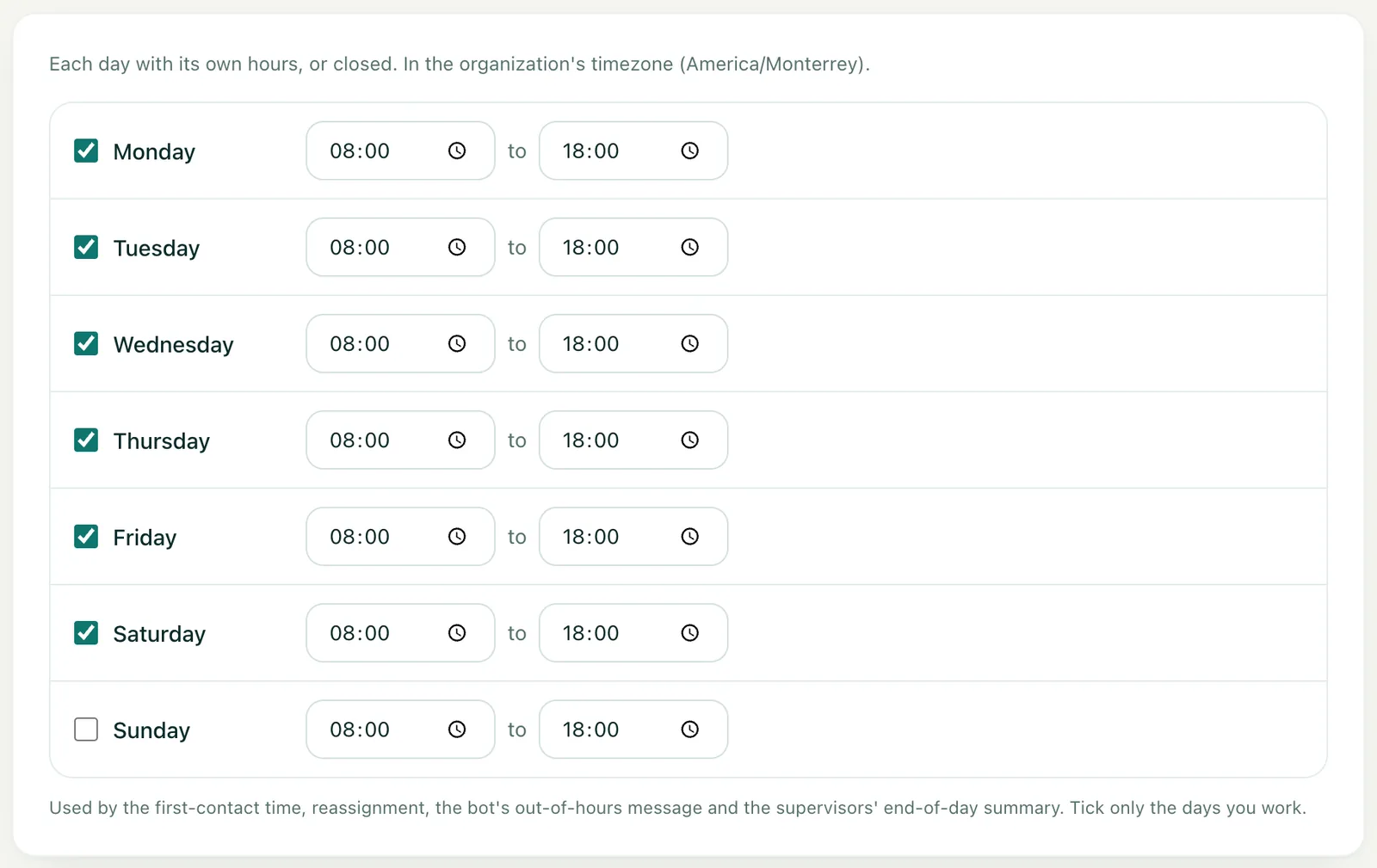
Go to Settings › Opening hours and check the days you're open, with their opening and closing time. Only times within these hours are offered, and never with less than one hour's notice.
2. Choose who books: the agent or a flow
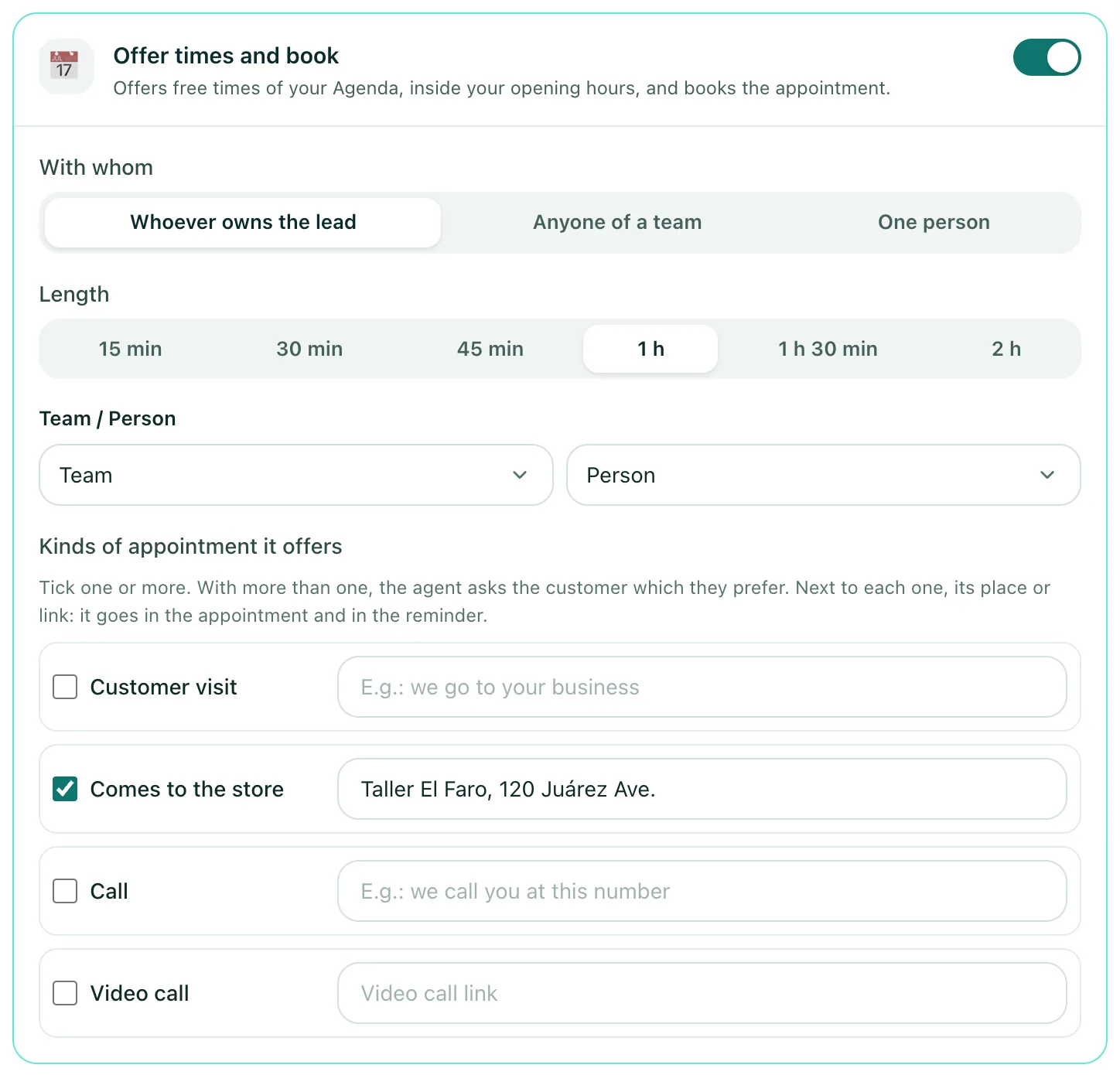
With the AI agent (recommended if your customers write in their own words): go to Settings › AI agent › What it can do and turn on Offer times and book. Right there you choose:
- With whom: whoever has the lead, anyone on a team, or one specific person.
- Length of the appointment.
- Kinds of appointment it offers: customer visit, comes to the store, call or video call, each with its place or link. If you check more than one, the agent asks the customer which one they prefer.
If you haven't taught the agent about your business yet, start with Set up your AI agent.
With a bot flow (if you prefer questions with options): in Settings › Agenda, open The bot books and turn it on. Then, in your flow, add the Offer times and book step: it offers the customer the next 3 free times. How to build a flow is in Create a bot flow.
3. Try it
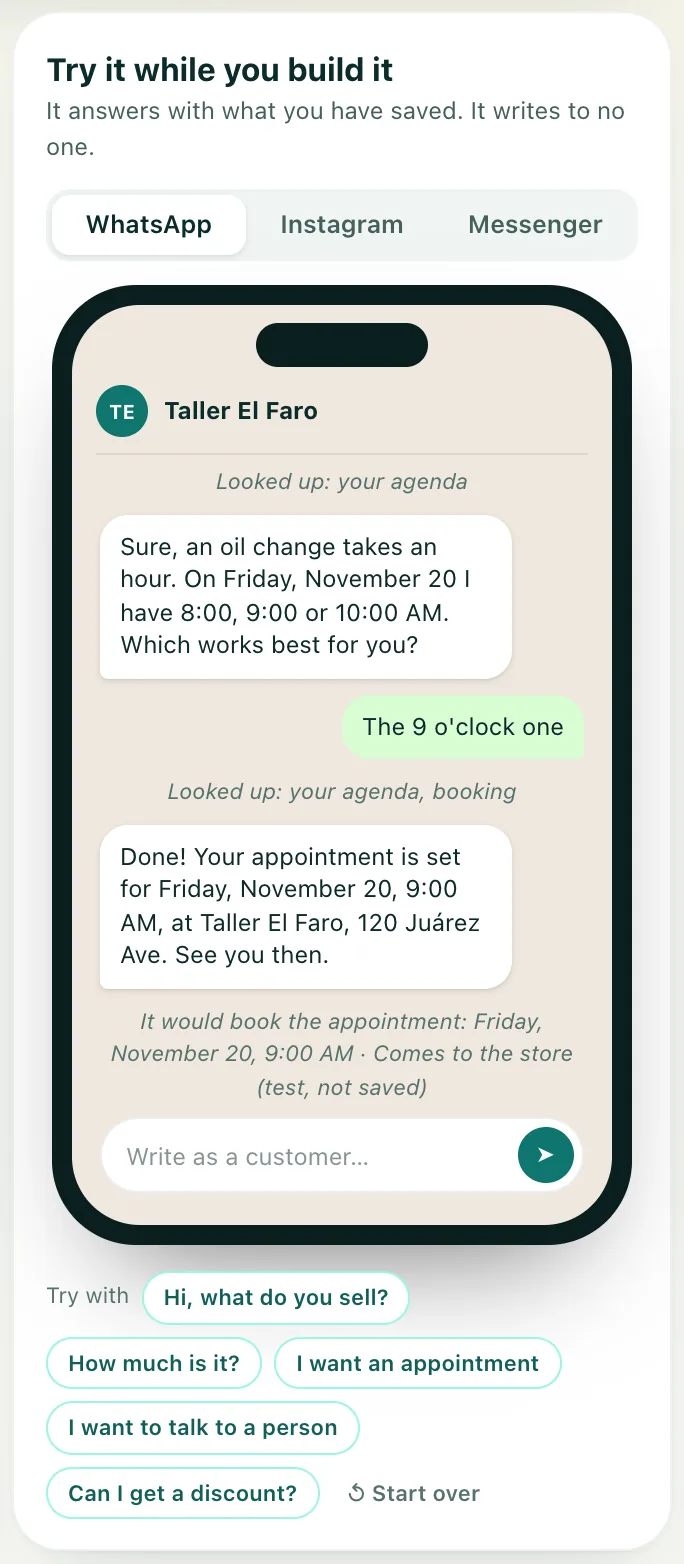
In the agent, open Try it while you build it and write as your customer: "I'd like an appointment for an oil change". The agent offers you free times; answer with one and you'll see the appointment it would book. Nothing is saved in the test.
If two customers pick the same time at the same moment, only one gets it: the other is told that time was just taken and is offered others. Two overlapping appointments are never booked for the same person.
4. See your appointments in the Agenda
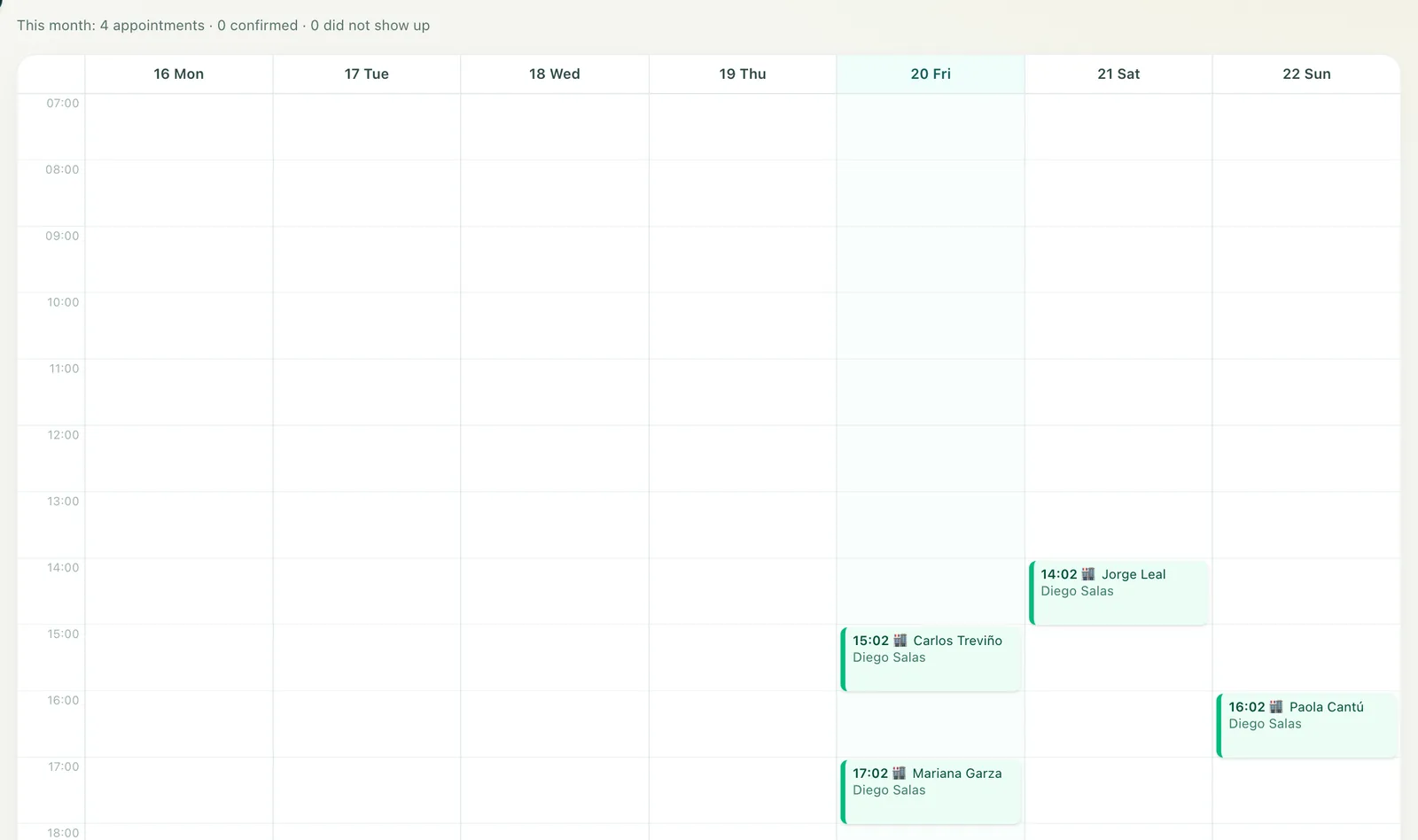
In the menu, open Agenda. You see the week's appointments by day and by person, with their kind, and you can filter by team. You can also book by hand with Schedule, for example when someone calls you.
5. Your reminder
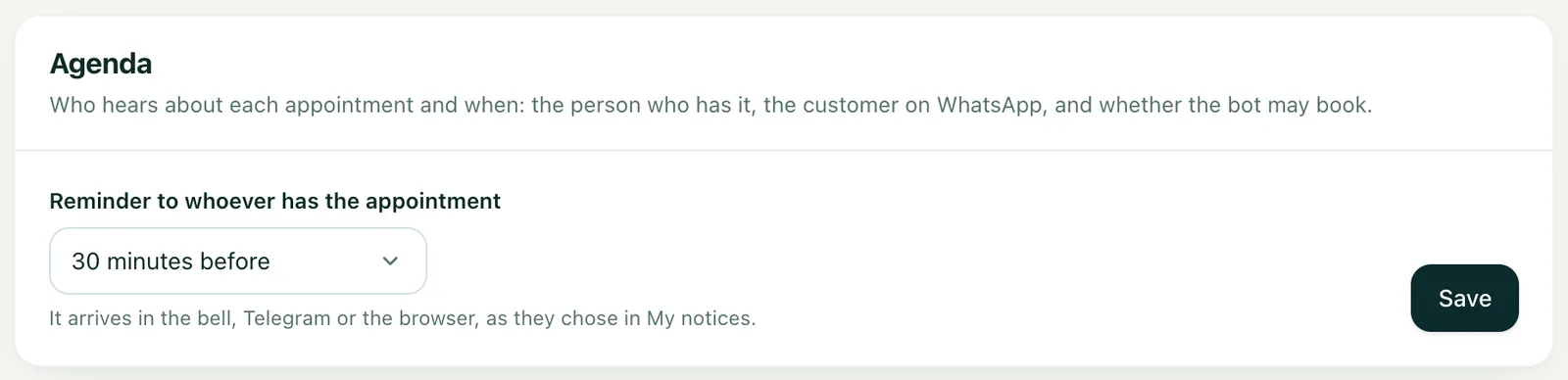
In Settings › Agenda › Your team you choose how far ahead we notify whoever has the appointment: 15 or 30 minutes, 1 or 2 hours. We also notify them when someone books them a new appointment. It reaches them through the bell, Telegram or the browser, depending on what they chose in My notices (see Find out the moment each lead comes in).
6. The WhatsApp reminder to your customer
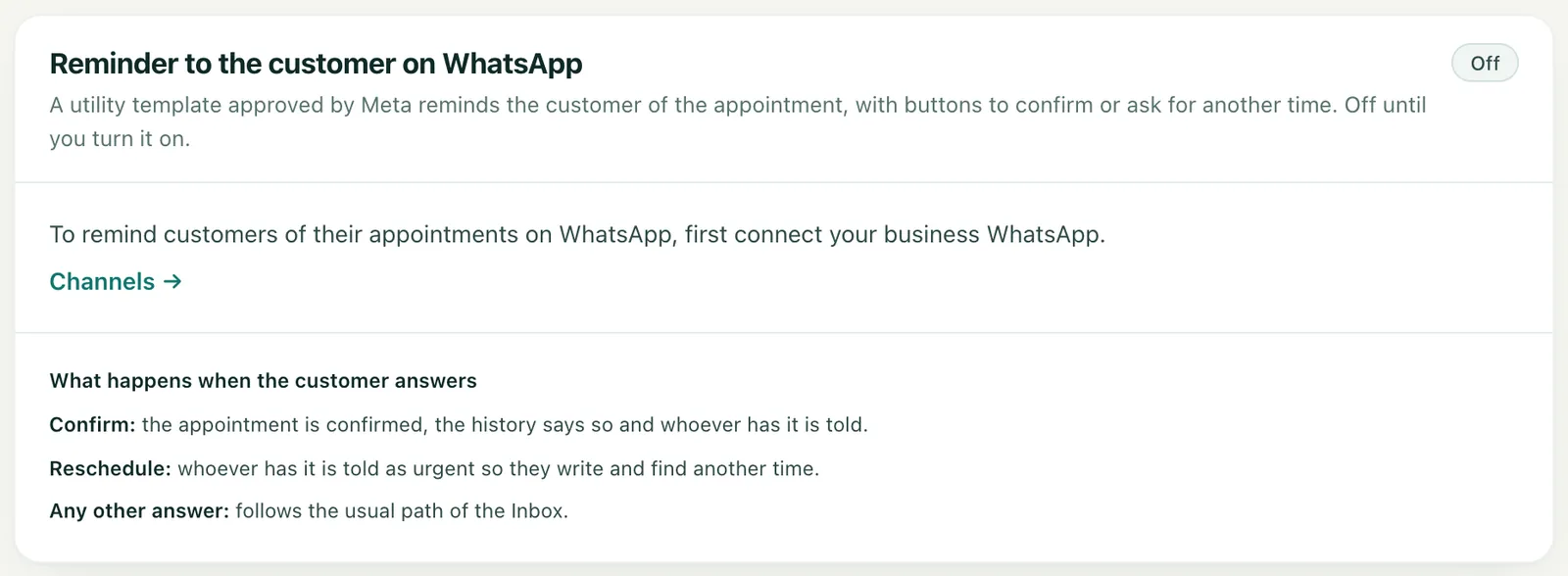
In Settings › Agenda › The customer, turn on Reminder to the customer on WhatsApp. You need your WhatsApp connected and a utility template approved by Meta (Teczal helps you create the "Appointment reminder" one). You choose:
- The Template and which piece of data goes in each slot (name, date, time, place).
- The First notice: how many hours before the appointment.
- A Second notice, optional and closer to the appointment.
When the customer replies:
- Confirm: the appointment is confirmed and we let you know.
- Reschedule: we notify you as urgent and, if the bot books, it offers the customer new times with you.
Each notice is a message Meta charges to your WhatsApp account. How to connect your number and create templates is in Connect your WhatsApp.
7. After the appointment
Once you've attended the customer, open the appointment and tap Mark as done (or Did not show up, if they didn't come). That way the Agenda tells you how many appointments were confirmed and how many didn't show up. If you want to reach out to them again later (for example, "check-up in 6 months" or "follow-up in 3 weeks"), create a follow-up from their record, as explained in Work a lead from its record. When the date comes, Teczal reminds you.
What Teczal doesn't do: the reminder to the customer only goes out on WhatsApp; if you only use Instagram or Facebook, the customer gets no reminder (you do). It also doesn't create the after-appointment follow-up on its own: you schedule that one from the record. And it doesn't charge advance payments or deposits for the appointment.