In this guide: 9 parts
You do it only once and it takes about 10 minutes. You keep using WhatsApp Business on your phone, as always, and your messages also arrive in the Teczal Inbox for your whole team. You can bring your chat history from the last 6 months.
1. Before you start, have at hand
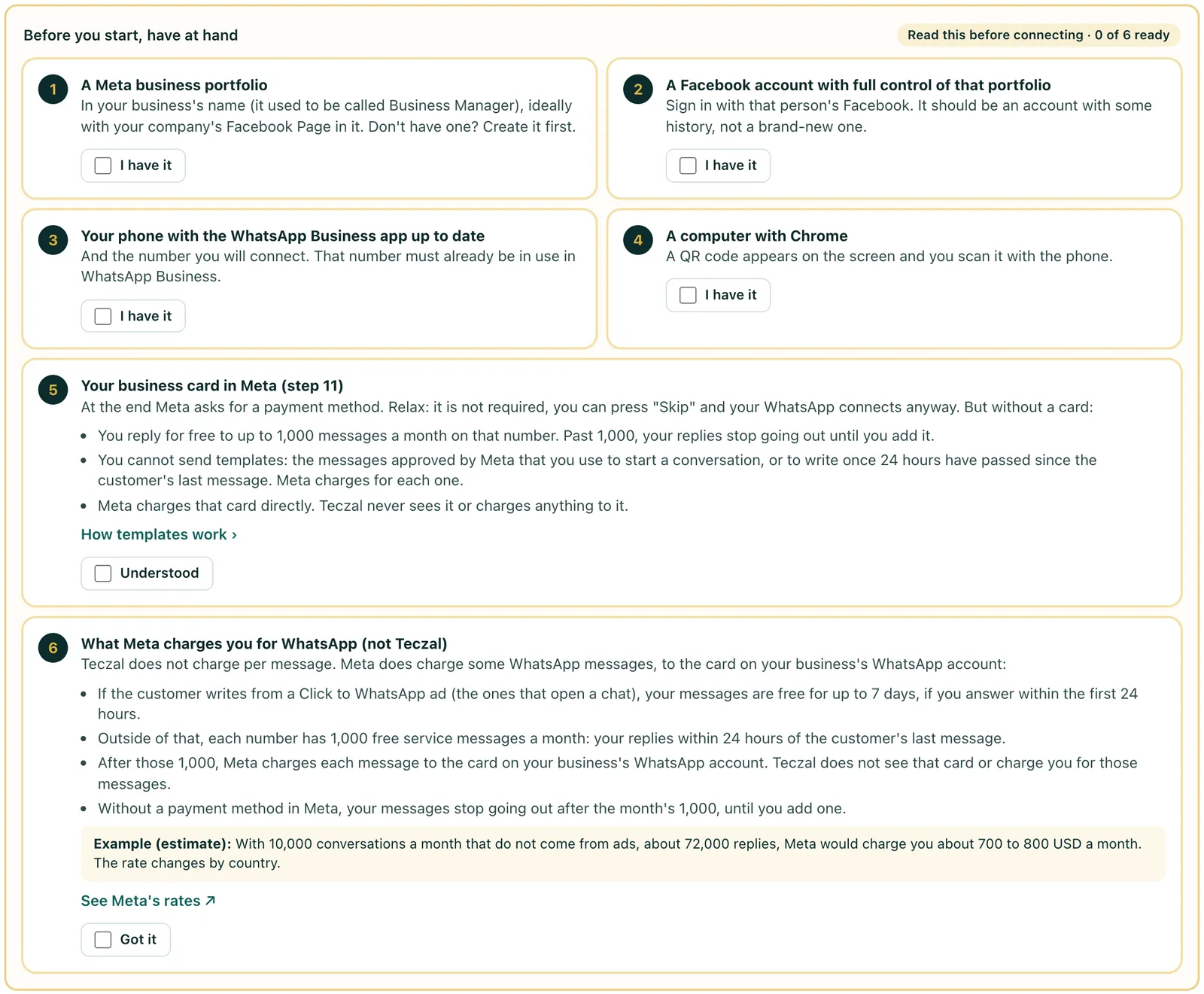
- A Meta business portfolio in your business's name (it used to be called Business Manager), ideally with your company's Facebook Page in it. Don't have one? Create it first.
- A Facebook account with full control of that portfolio. It should be an account with some history, not a brand-new one.
- Your phone with the WhatsApp Business app up to date and the number you're going to connect. That number must already be in use in WhatsApp Business.
- A computer with Chrome: a QR code appears on the screen and you scan it with your phone.
- Your business card: at the end Meta asks you for a payment method (we explain it in step 4).
WhatsApp comes with your plan. The Teczal free trial includes Instagram or Facebook. WhatsApp is connected when you choose your plan.
2. Connect from Teczal
- In the menu, open Channels (if you don't see it, it's under More) and then WhatsApp. Check off what you already have ready under Before you start, have at hand and tap Connect WhatsApp with Meta.
- Our provider's page opens: it's the one Teczal uses to connect to Meta. Tap Continue with WhatsApp. A Meta window opens on top: if you don't see it, it may be behind, or your browser blocked it (allow pop-up windows).
- Sign in with the Facebook account that has full control of the portfolio. With another Facebook account, your portfolio won't show up.
- Type your number without the country code, straight into the field, and check that the country is right. Leave Text message selected.
- Check that the profile Meta shows is your business.
- Choose your business portfolio from the list. Choose carefully: after connecting, Meta doesn't let you change it. Don't use the option to create one right there: it can fail with error #1357032.
- Fill in your company profile (name, country and website; if you don't have a website, use the address of your Facebook Page or your Instagram).
- Confirm your account name and time zone, and accept the permissions.
Inside Teczal, in Channels, WhatsApp, you have the full guide with screenshots of every screen, under See the step-by-step guide. If Meta changes something, we keep the steps up to date there and here.
3. Scan the code with your phone
Meta shows a QR code. In WhatsApp Business, go to Settings and tap Linked devices, then Link a device, and point the camera at the code. Don't close the window on your computer.
When it asks, choose to share the history (up to 6 months of chats) so you see them in Teczal too.
WhatsApp Web and your other devices
- When you connect, WhatsApp Web signs out on its own, just like your other linked devices. You link it again from WhatsApp Business, in Linked devices. WhatsApp Web in the browser does work.
- Don't use the WhatsApp app for Windows: whatever you reply there doesn't reach Teczal.
- Your phone is still the main device: open it every now and then (we explain it in step 5).
4. Your business card in Meta
At the end Meta asks you to Add a payment method. It's not required (you can tap Skip and finish setup), but without a card:
- You reply for free up to 1,000 messages a month on that number. Past 1,000, your replies stop going out until you add it.
- You can't send templates (step 6).
Meta charges that card directly. Teczal doesn't see it or charge anything to it: the invoice comes from Meta. We recommend adding it that same day. If you skipped it, add it in Meta Business Suite: Settings, Billing and payments, Messaging accounts.
5. Done: try it out
The window closes on its own and in Channels, WhatsApp you see your number connected. Write "Hi" to your number from another phone: in seconds it shows up in the Inbox.
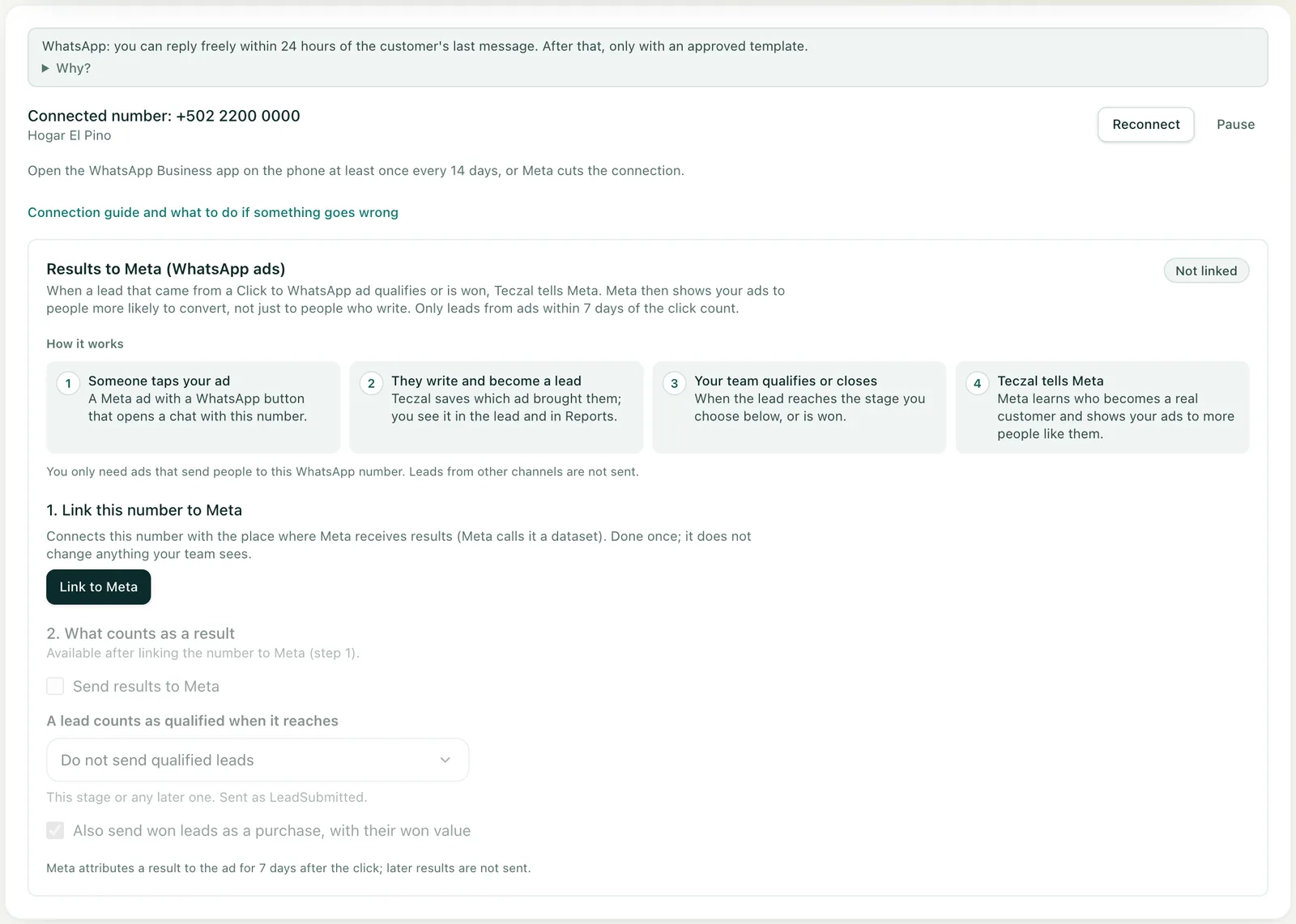
Keep opening WhatsApp Business on your phone. If about 14 days go by without the main phone being active, Meta cuts the connection. You fix it by opening the app and tapping Reconnect in Channels, WhatsApp.
6. The 24-hour window and templates
- When a customer writes to you, a 24-hour window opens. Inside it you reply freely, without a template, and every new message from the customer restarts the 24 hours. The Inbox tells you how much time is left.
- To write first, or when 24 hours have already passed, you need a template: a message you write once, Meta approves it, and then you send it as many times as you want.
- When the customer replies to your template, the 24-hour window opens again.
Templates are created in WhatsApp templates, which has its own step-by-step guide inside (See the step-by-step guide).
7. Categories and costs
Meta charges for each template delivered, based on its category and the country of the customer who receives it. Creating one costs nothing.
| Category | What it's for | Meta list price (Guatemala and the rest of Latin America) |
|---|---|---|
| Utility | Something the customer already asked for or did with you: the follow-up on their request, their appointment reminder, their order status. | US$0.0113 per template delivered |
| Marketing | Promotions, offers, news, invitations or getting back in touch with someone who stopped writing. | US$0.074 per template delivered |
These are approximate prices, checked on October 24, 2026, and Teczal keeps them up to date (inside WhatsApp templates you always see the current ones). For a customer in another country, Meta charges that country's rate. Teczal shows you the approximate cost before sending, in the Inbox and in Broadcasts.
Choose the category that really fits. If a utility template includes a promotion, Meta moves it to Marketing (it warns you 24 hours before) and each send costs about 6 times more. Teczal lets you know and flags it in your list.
Meta reviews every template before you use it: it usually decides in minutes and sometimes takes up to a day. It rejects, for example, texts that start or end with a variable, products WhatsApp doesn't allow you to promote (alcohol, tobacco, weapons or medicines), asking for sensitive data, or messages that sound threatening or pushy.
8. Protect your number
Your WhatsApp number is your business's number: the one your customers know and save. Protecting it is protecting your business.
- Meta lets your number write first to up to 250 different people in a rolling 24 hours. Replying to someone who wrote to you never counts.
- Meta raises that limit over time if your number sends with good quality: few blocks and reports. Every person who blocks or reports you counts against you.
- Only write to people who know you, with clear and useful messages, and in the right category.
That's why Broadcasts comes with safeguards:
- Cost before sending: you see how many contacts and roughly how much Meta will charge before approving.
- Only who already wrote: never cold lists, only contacts with a WhatsApp conversation with you.
- An administrator approves: who prepares it and who approves it stay in the Audit log.
- Slowly and capped: 20 a minute and a daily maximum (250, to start), to protect your number's quality.

If something goes wrong
| What happens | What to do |
|---|---|
| Error #1357032 when creating the portfolio. | Create the portfolio beforehand in Meta Business Suite (guide) and start again. This time you just pick it. |
| My portfolio is grey: "You need full control". | Ask whoever manages the portfolio for full control, or have that person make the connection with their Facebook. |
| "The number you entered is not a valid phone number". | Check the country and type the number without the code. |
| The number shows as "Not eligible". | Type it straight into the field, without picking it from the list. Check that it's active in WhatsApp Business and that the app is up to date. |
| I closed the window halfway. | In Channels, WhatsApp it says "The connection was left halfway": tap Check connection if you already finished in Meta, or Start again. Nothing gets duplicated. |
| My messages or templates don't go out and Teczal says Meta couldn't charge. | Add or check the payment method in Meta Business Suite: Settings, Billing and payments, Messaging accounts. |
| I stopped getting messages in Teczal. | Open WhatsApp Business on your phone and tap Reconnect in Channels, WhatsApp. |
Still have questions? Write to us on WhatsApp with a screenshot of the screen where you got stuck and we'll help you finish.