In this guide: 7 parts
What you'll get: every customer who writes to you reaches, on their own, a person on your team who can attend them right then, taking turns and without overloading anyone. And if nobody contacts them in time, you decide what happens.
In this recipe we use a sample furniture store with 6 salespeople. It works the same for any team that attends customers.
1. Open Your lead sharing
In the menu, open Distribution and tap Edit your lead sharing. The first time you go into Distribution, Teczal takes you straight there.
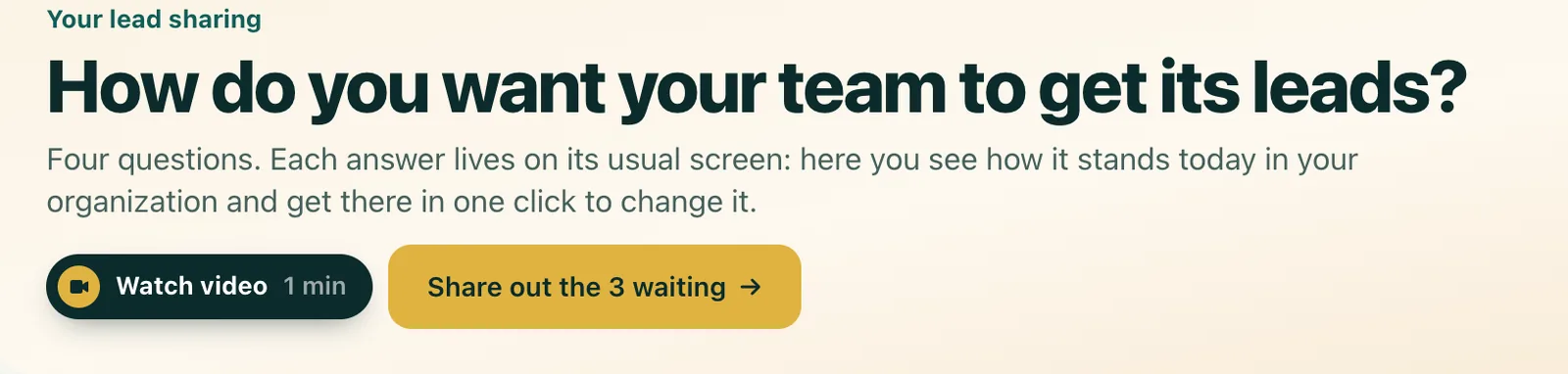
Your lead sharing is four questions. Each answer lives on its usual screen: here you see how it's set up today in your organization, and one click takes you to change it. If there are leads waiting, a button to share them out appears at the top (Share out the waiting lead, or Share out the 3 waiting when there are several).
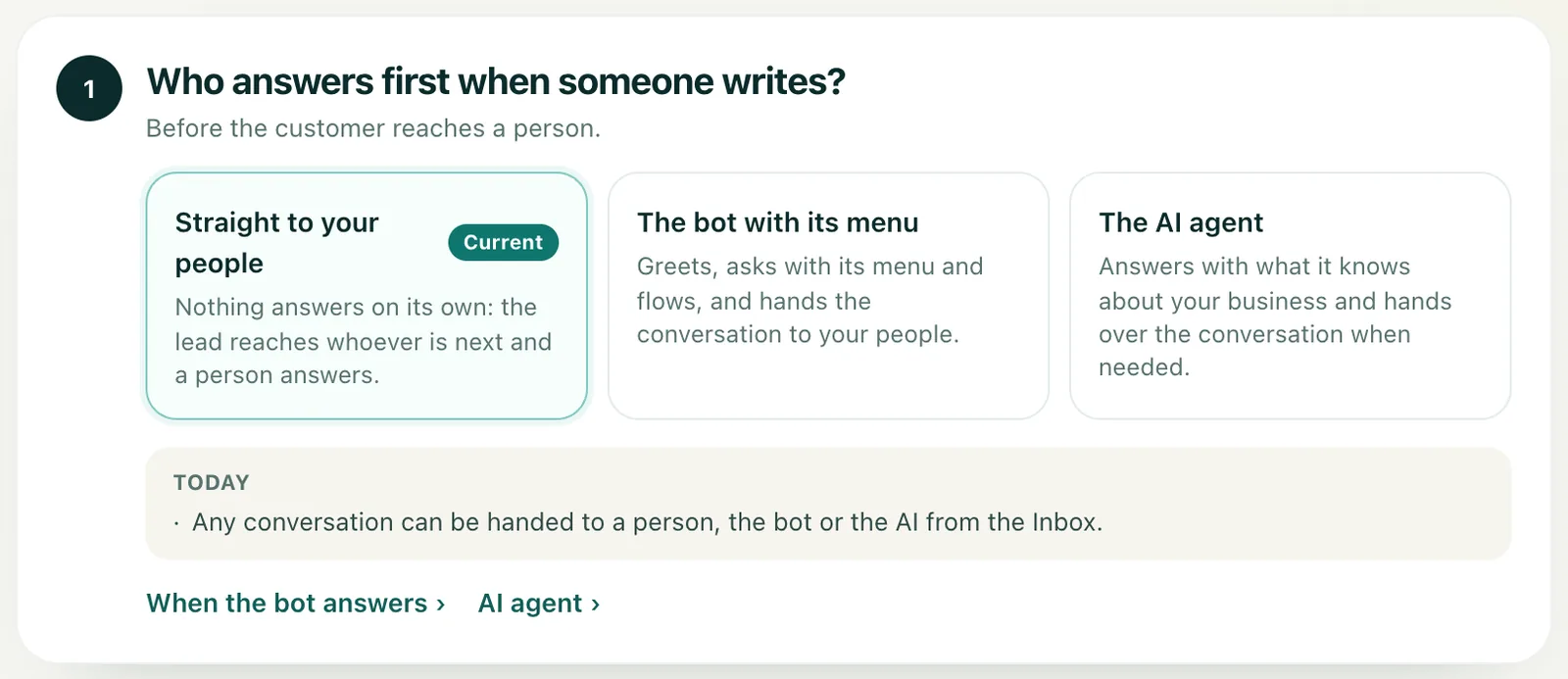
2. Who answers first when someone writes?
Choose what happens before the customer reaches a person:
- Straight to your people: nothing answers on its own; the lead reaches whoever is next and a person answers.
- The bot with its menu: it greets, asks with its menu and its flows, and hands the conversation to your people.
- The AI agent: it answers with what it knows about your business and hands over the conversation when needed.
The one you have today says Current. To change it, tap When the bot answers or AI agent. Any conversation can later be handed to a person, the bot or the AI from the Inbox.
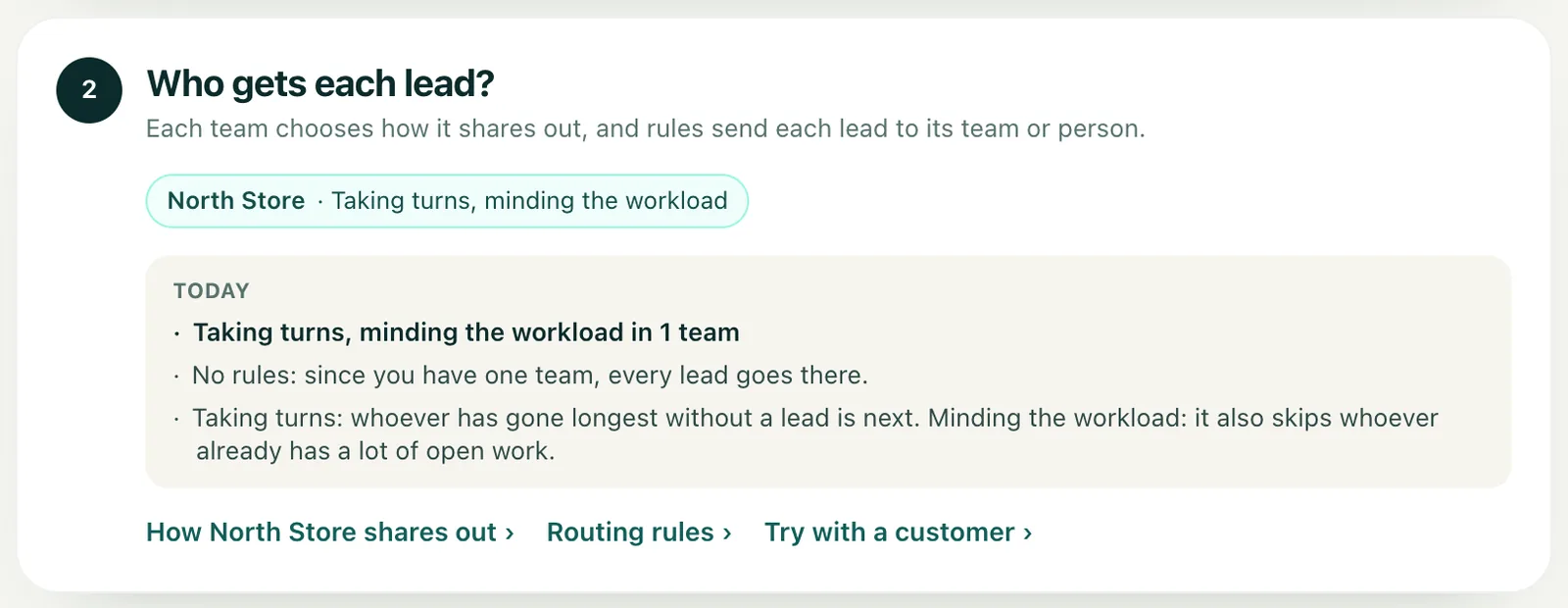
3. Who gets each lead?
Each team chooses how it shares out, and the Routing rules send each lead to its team or person (by area, product, campaign or form). With just one team you don't need rules: every lead goes there.
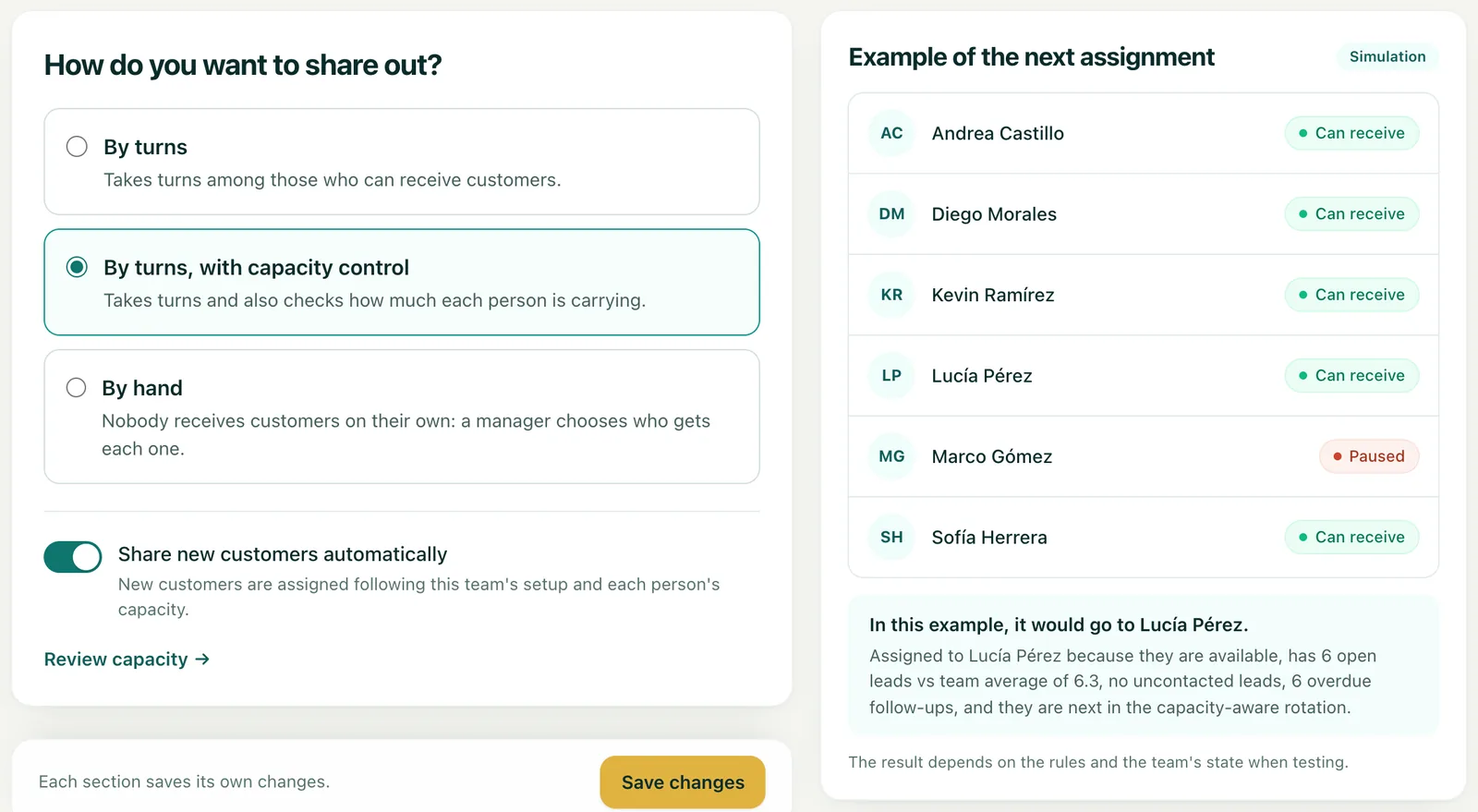
Tap How each team shares out to choose:
- By turns: it alternates between the people who can receive.
- By turns, with capacity control: on top of that, it skips anyone who already has a lot of open work.
- By hand: nobody receives on their own; a manager chooses who gets each one.
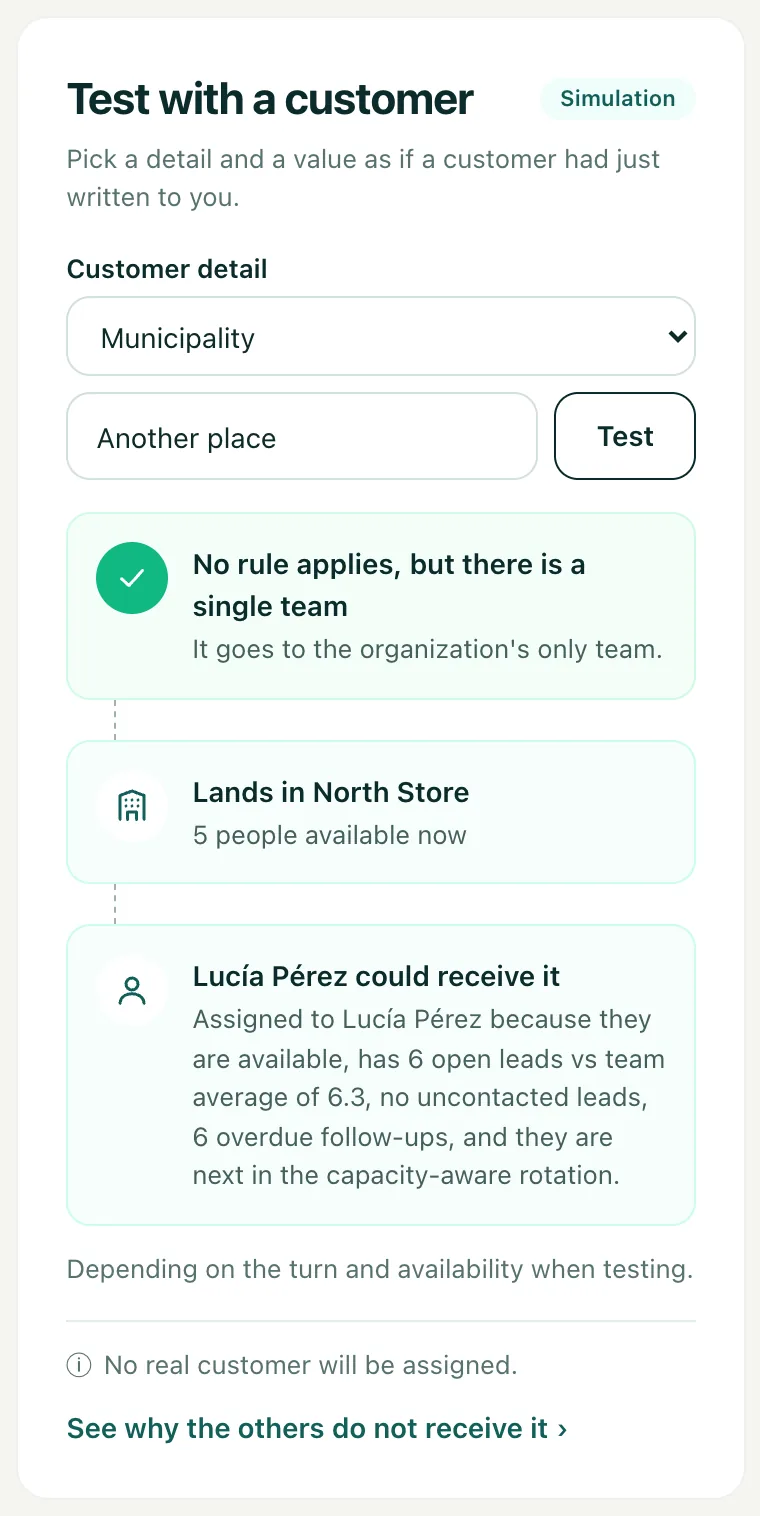
Leave Share new customers automatically on. On the right you see who would get the next lead and why.
To check it with a real case, tap Try with a customer: you pick a piece of customer data (for example, their town) and see which team it reaches and who could receive it. No real customer gets assigned.
4. Who can receive right now?
Only people set to Available get automatic leads. Everyone picks their status at the top right (Available, Busy, Paused). Here you see each person with their status and how many can receive right now, plus today's rules: whether Busy receives or not, whether statuses change on their own with your hours, and the limits per person.
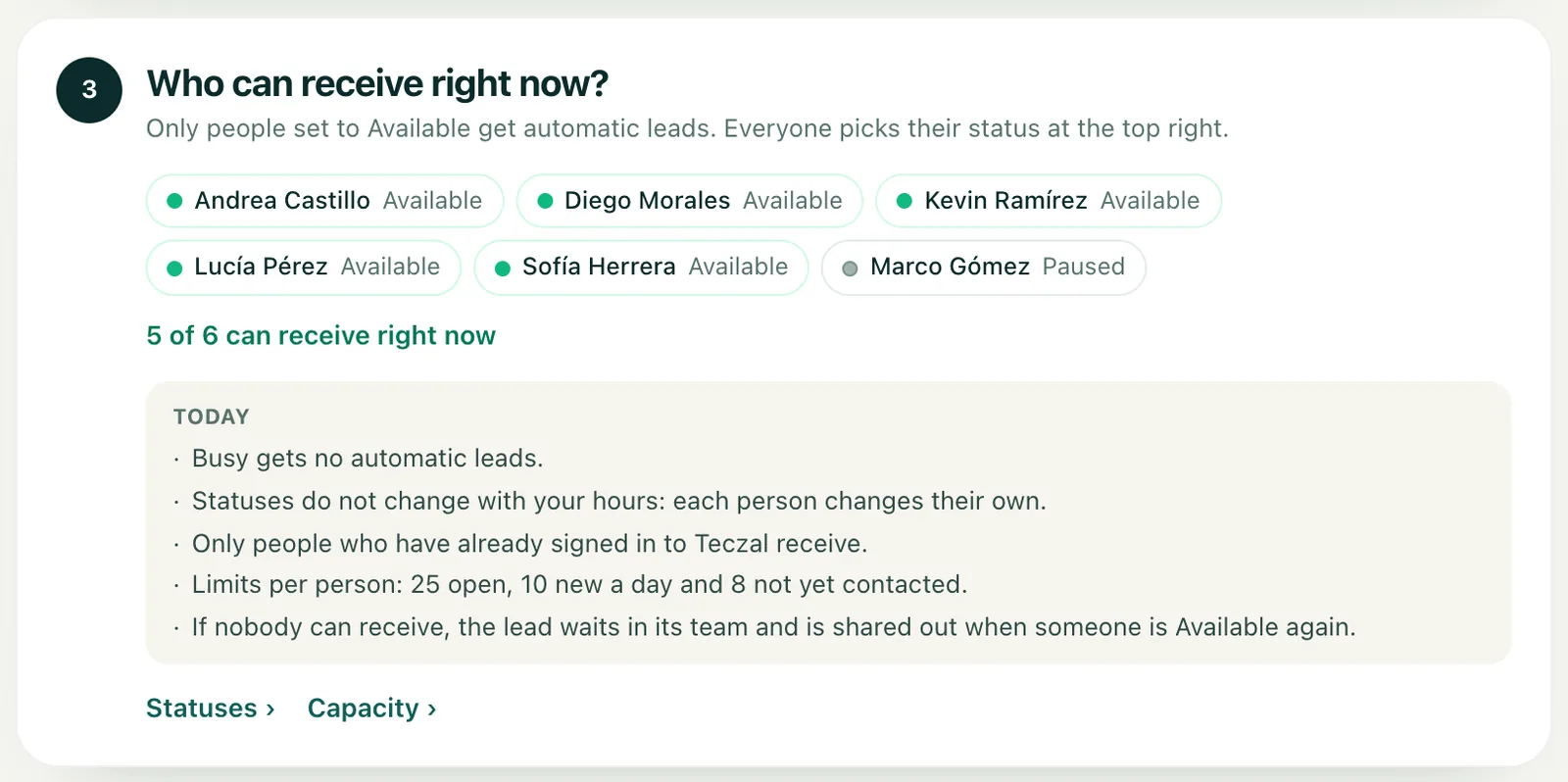
If nobody can receive, the lead waits in its team and is shared out when someone is Available again. To change the rules, tap Statuses or Capacity.
5. And if nobody answers in time?
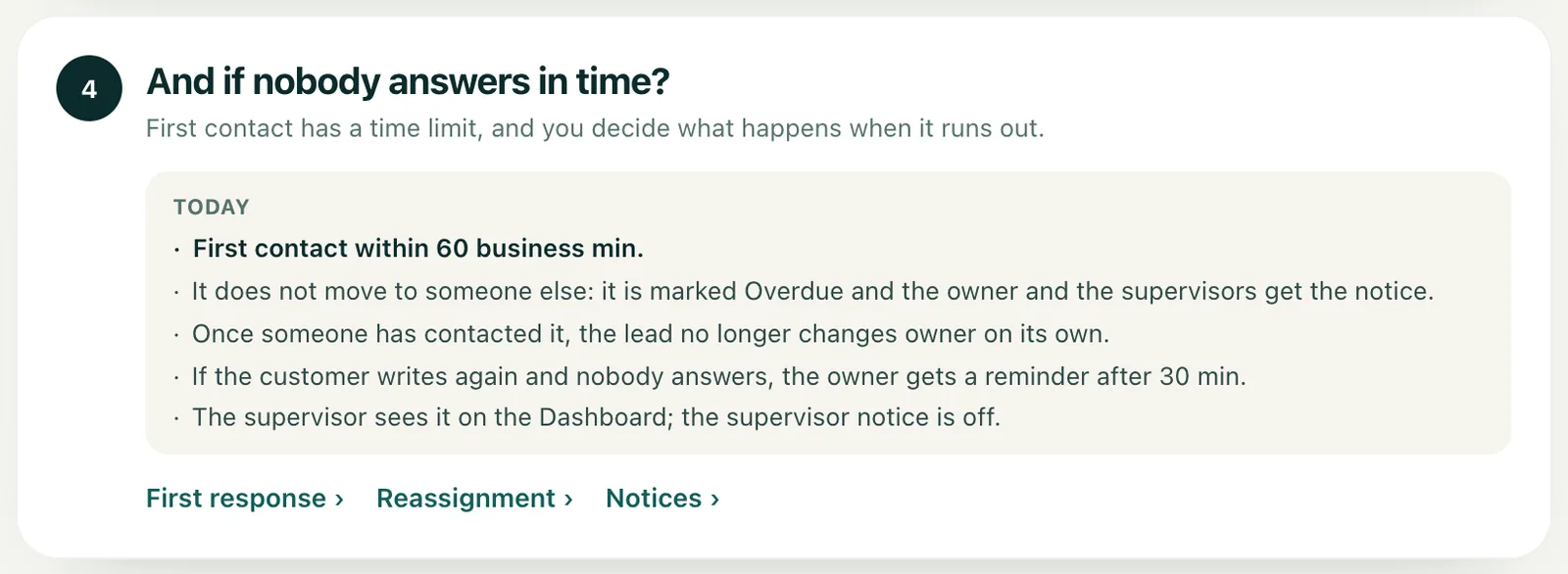
First contact has a time limit (for example, 60 business minutes) and you decide what happens when it runs out:
- Move it to someone else who is Available on the team, as many times as you choose; after that, a supervisor takes it.
- Or leave it with whoever has it, marked Overdue, with a notice to that person and to the supervisors.
Once someone has contacted it, the lead no longer changes owner on its own. You change this in First response, Reassignment and Notices.
6. Look at your lead sharing example
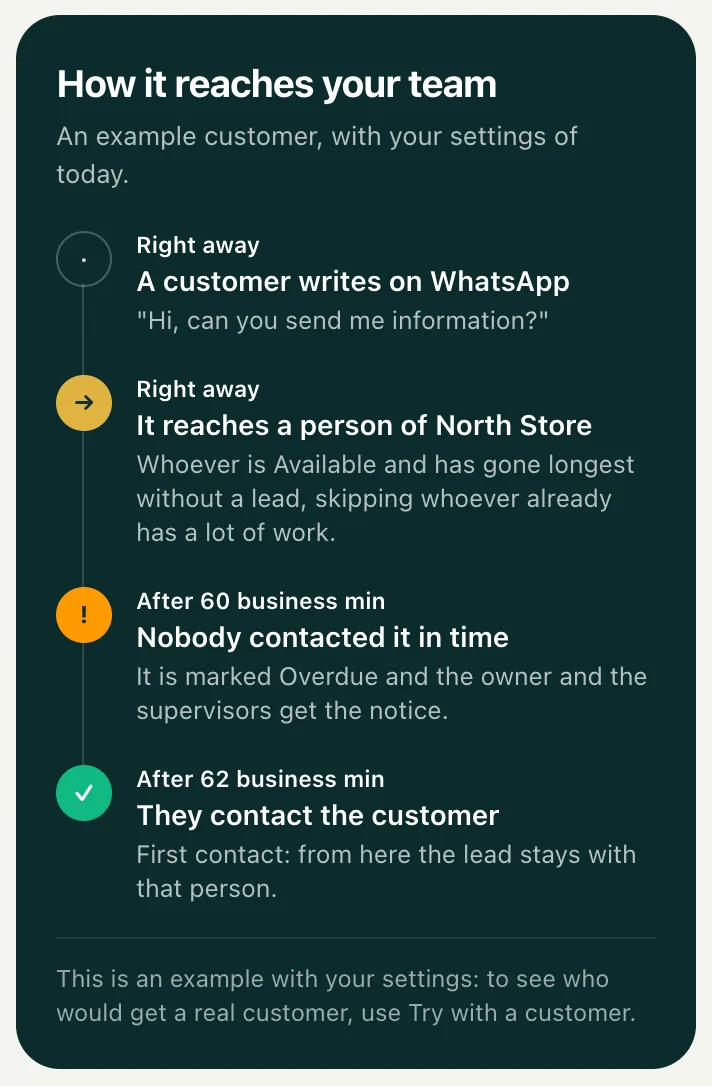
On the right, How it reaches your team tells you, with your settings of today, what happens to an example customer: when they reach a person, when it would run out, and when they stay with whoever contacted them. If you change something, come back here and see how it changes.
7. Share out the ones left without an owner
If some leads came in when nobody could receive, tap the button to share out the waiting leads. You see how it would end up before anything gets assigned. The step by step is in Share out the leads that have no owner.
For each salesperson to find out the moment they get a new lead, follow the recipe Find out the moment each lead comes in.
What Teczal doesn't do: it doesn't give automatic leads to anyone who isn't Available or, with capacity control, to anyone who has reached their limit, and it doesn't change anyone's status unless you set it up with your hours. It also doesn't take a lead away from whoever already contacted it. If nobody can receive, the lead waits in its team: it isn't lost, but it doesn't reach anyone either until someone is Available again.