In this guide: 7 parts
Sometimes leads end up without an owner: someone left, was on vacation, or the lead came in when nobody could receive it. Distribution only shares out those, the ones with no owner.
1. Go to Distribution
In the menu, open Distribution (if you don't see it, it's under More). If it's your first time, Teczal first takes you to the guide How do you want your team to get its leads? so your lead sharing is ready.
2. What to share out
In 1. What to share out choose All unassigned or only the ones with a tag, and among which role. At the top you see Leads to share out, Can receive, Overloaded and Cannot receive.

3. Who gets leads
In 2. Who gets leads? the ticked boxes receive leads. Everyone who can receive starts ticked. Use All available or Clear all to go faster.
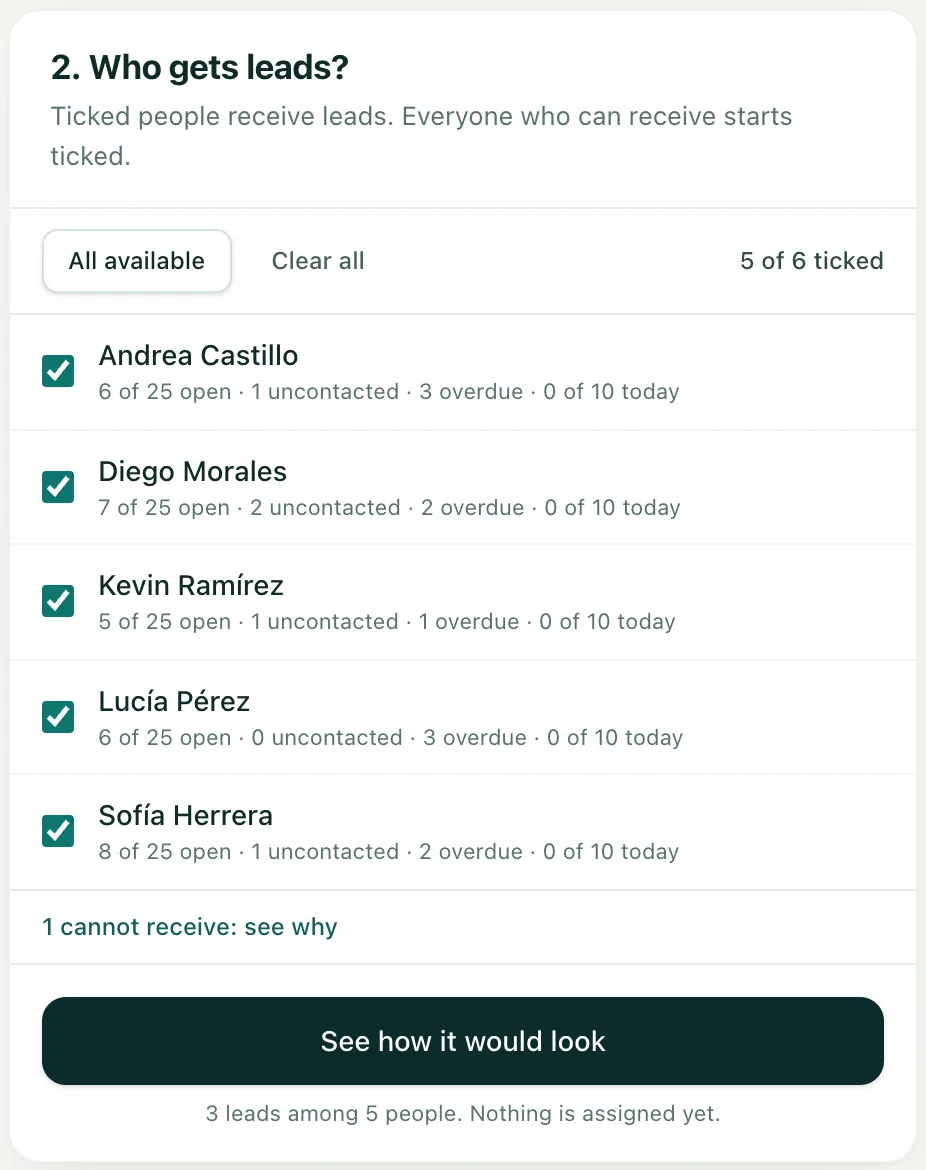
4. See how it would look
Tap See how it would look. Nothing is assigned yet: in 3. How it would look you see who gets each lead and why. With Give it to someone else you can lock a lead to someone or take it out of this run.
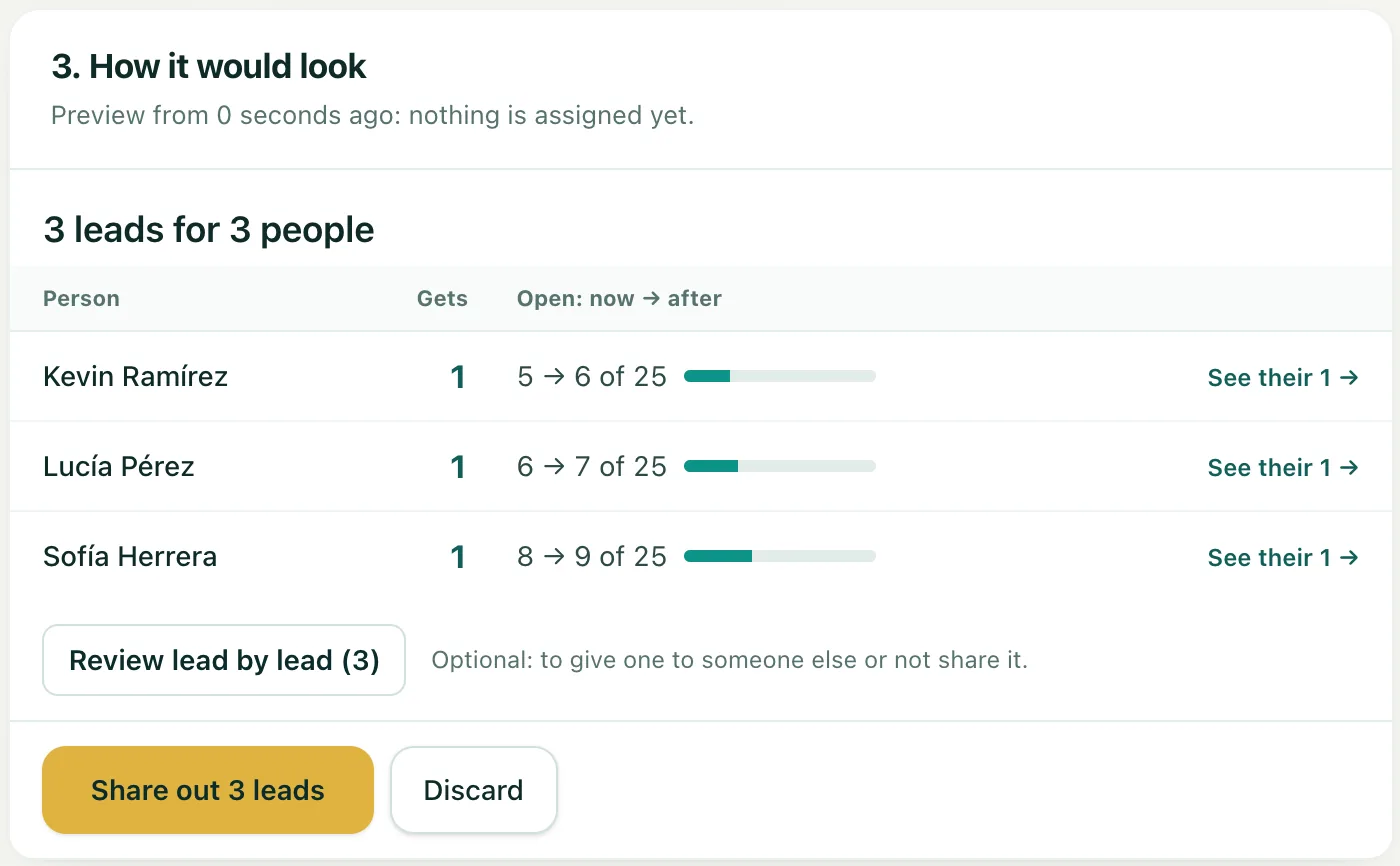
5. Share out
Tap Share out (the button says how many leads). Each person gets their notice and the run shows up in Recent runs. If you didn't like something before confirming, tap Discard.
Each run shares out the 500 oldest. If someone took or closed a lead while you were reviewing, Teczal skips it and lets you know.
Why someone cannot receive
Next to Cannot receive tap see why. Each person shows what's going on and What fixes it. The most common reasons:
- They have never signed in to Teczal.
- They have no notices turned on (neither Telegram nor the browser): they turn them on in My notices, the bell next to their name.
- Their automatic distribution is off, they are deactivated, or they are not in that team.
Why someone shows up as overloaded
They stop receiving leads automatically when they reach 80% of their open-lead limit, or when leads without a first contact or with many overdue follow-ups pile up.
Changing the stage does not lower the count. Closing the lead does (Won, Lost or Not qualified), and so does registering the first contact.
If you want to give them leads anyway, tap Include even if overloaded and confirm with Yes, include. It only applies to this run and it is noted in every lead.