In this guide: 9 parts
1. Create an automation
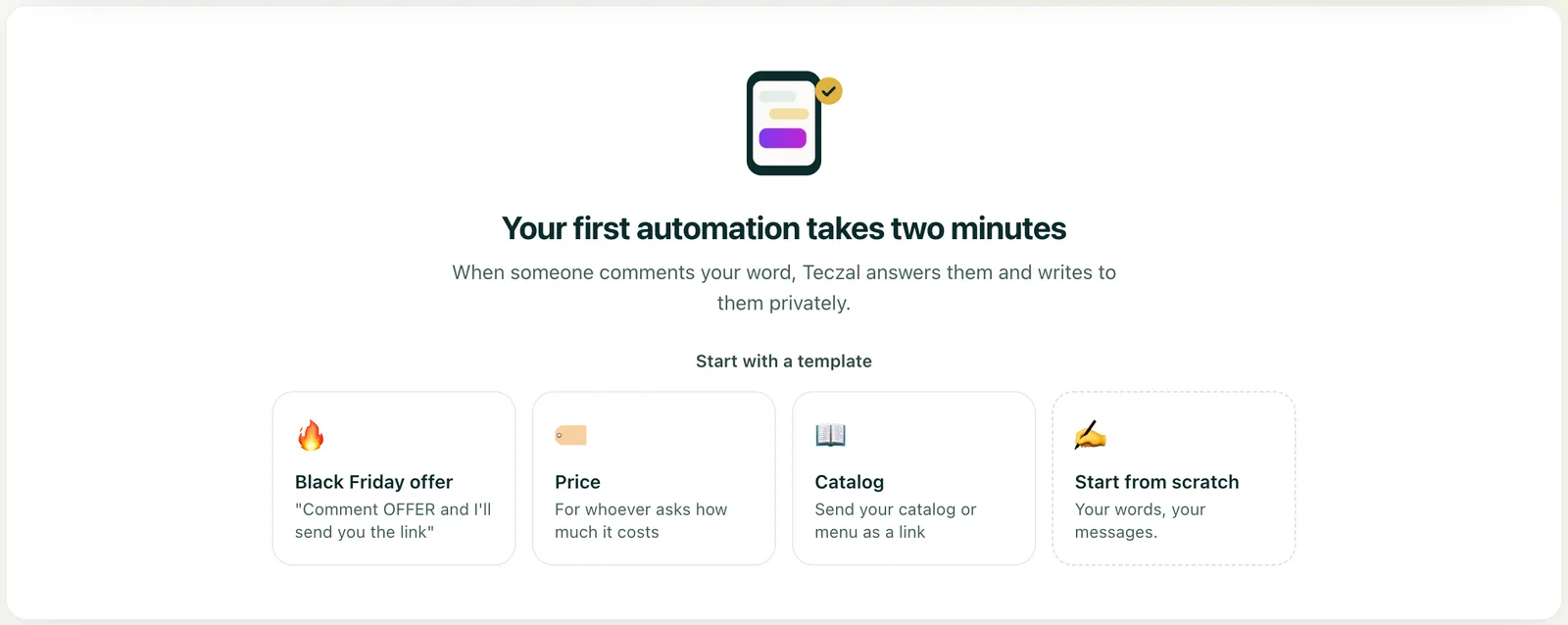
In the menu, open Social comments (if you don't see it, it's under More). Tap New automation.
Choose how to start: with a template (Black Friday offer, Price or Catalog) or Start from scratch. Then tell us how you talk to your customers: Casual, Formal or Vos.
2. Post
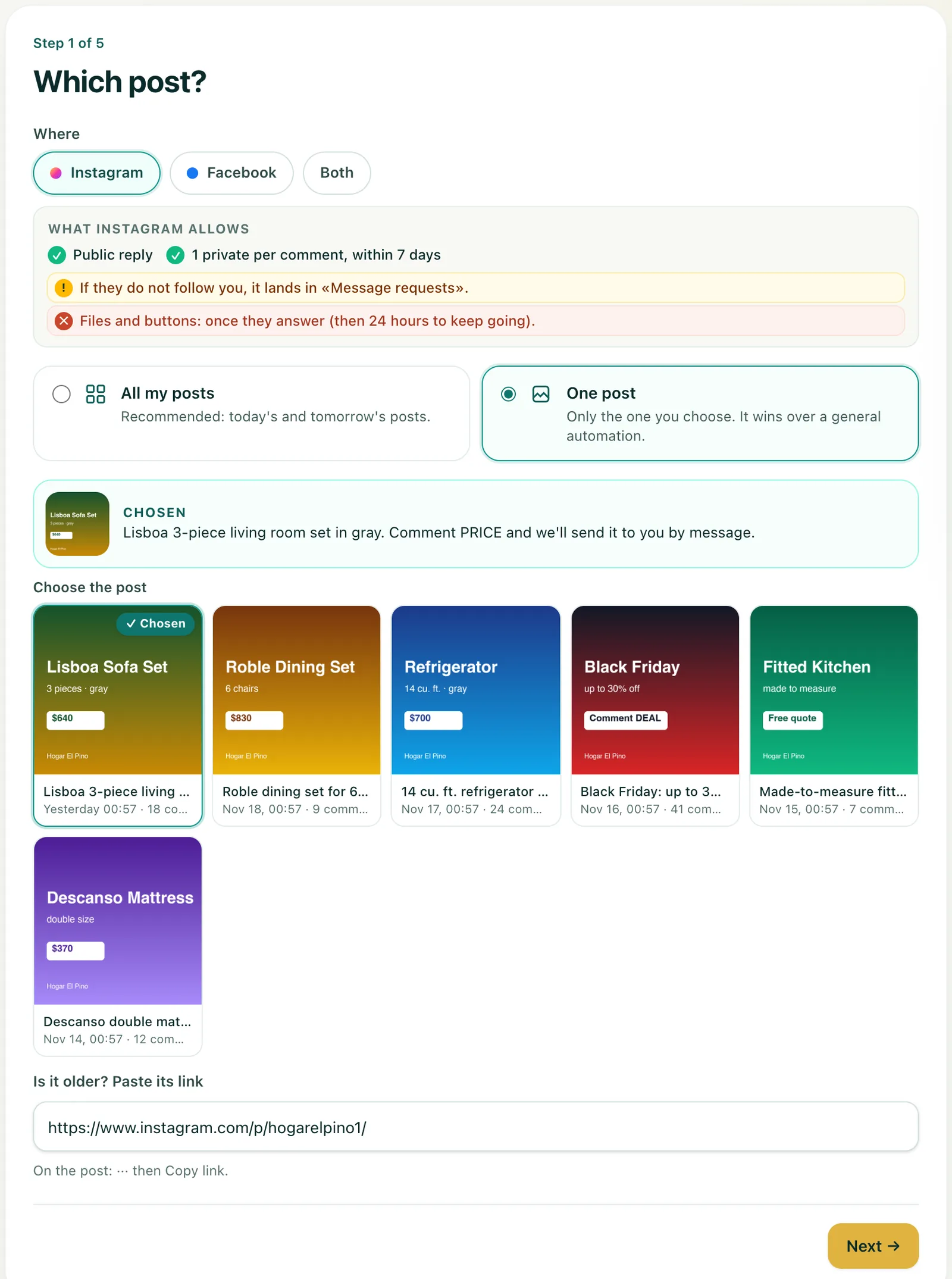
Choose whether it applies to All my posts or to One post (you pick it from the list or paste its link).
- All my posts is the recommended option: it answers on today's posts and on the ones to come.
- With One post you get a different rule for each post, with its own words and replies, depending on what each one sells. If a post has its own automation, that one wins over the general one.
3. Words
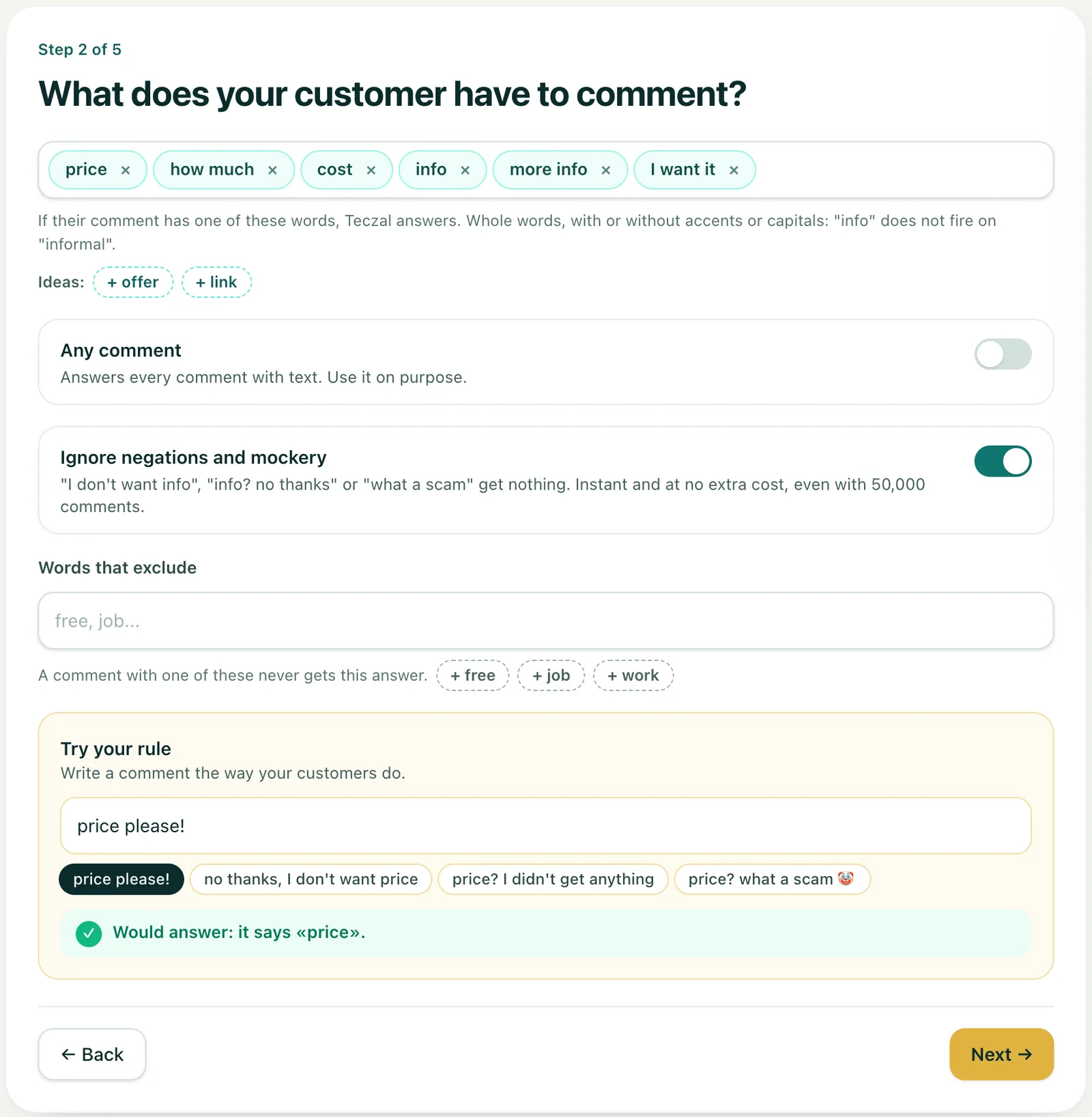
Type the words that trigger the reply, for example "price" or "info", or choose Any comment.
It can be one word or several together, like "more info" or "I want it": type it and press Enter, or tap it under Ideas. Only the whole word counts, with or without accents or capitals: "info" does not fire on "informal".
- Words that exclude: if the comment has them, it isn't answered.
- Ignore negations and mockery: it doesn't answer people who write that they don't want it or who are making fun.
- Before moving on, test it with Try your rule: type a comment the way your customers write them, or tap one of the examples.
- "price please!": it would answer, because it says "price".
- "no thanks, I don't want the price": it wouldn't answer, because it's a no.
- "price? I didn't get anything": it would answer, because it says "price".
- "price? what a scam": it wouldn't answer, because it looks like mockery.
4. Public reply
With Reply publicly turned on, Teczal answers under the comment. It already comes with 3 ready versions you can change.
Why 3 versions? Teczal alternates them: hundreds of identical replies in a row can look like spam to Meta.
5. Private message
Write what they get privately and add your link with Your links. If you used a template, change the part that says "(paste your link here)": you can't save without it.
6. After
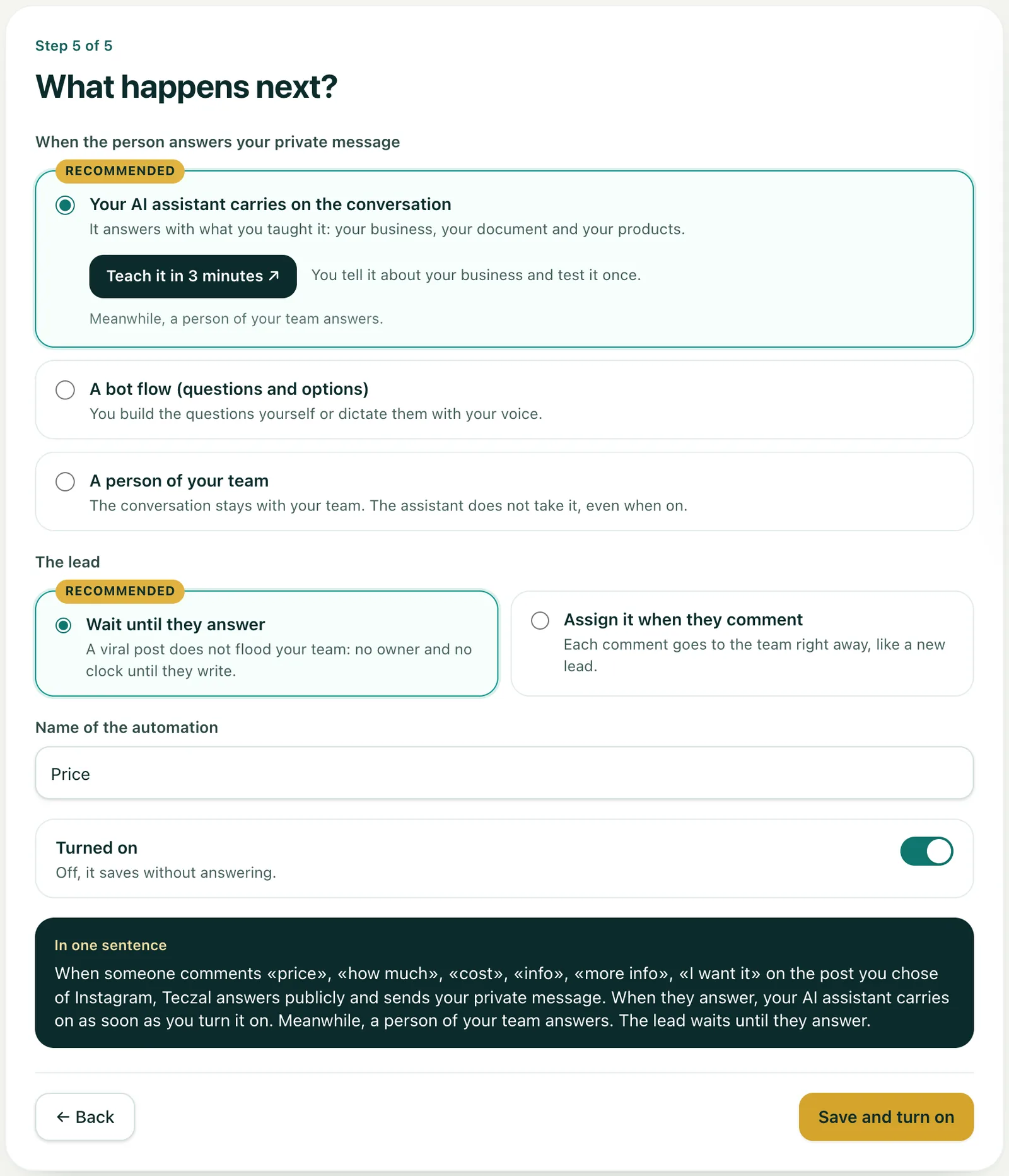
Decide what happens if the person answers the private message: Your AI assistant carries on the conversation, A bot flow or A person of your team. For the lead, choose Wait until they answer or Assign it when they comment.
Give it a Name of the automation and tap Save and turn on.
7. Test it without sending anything
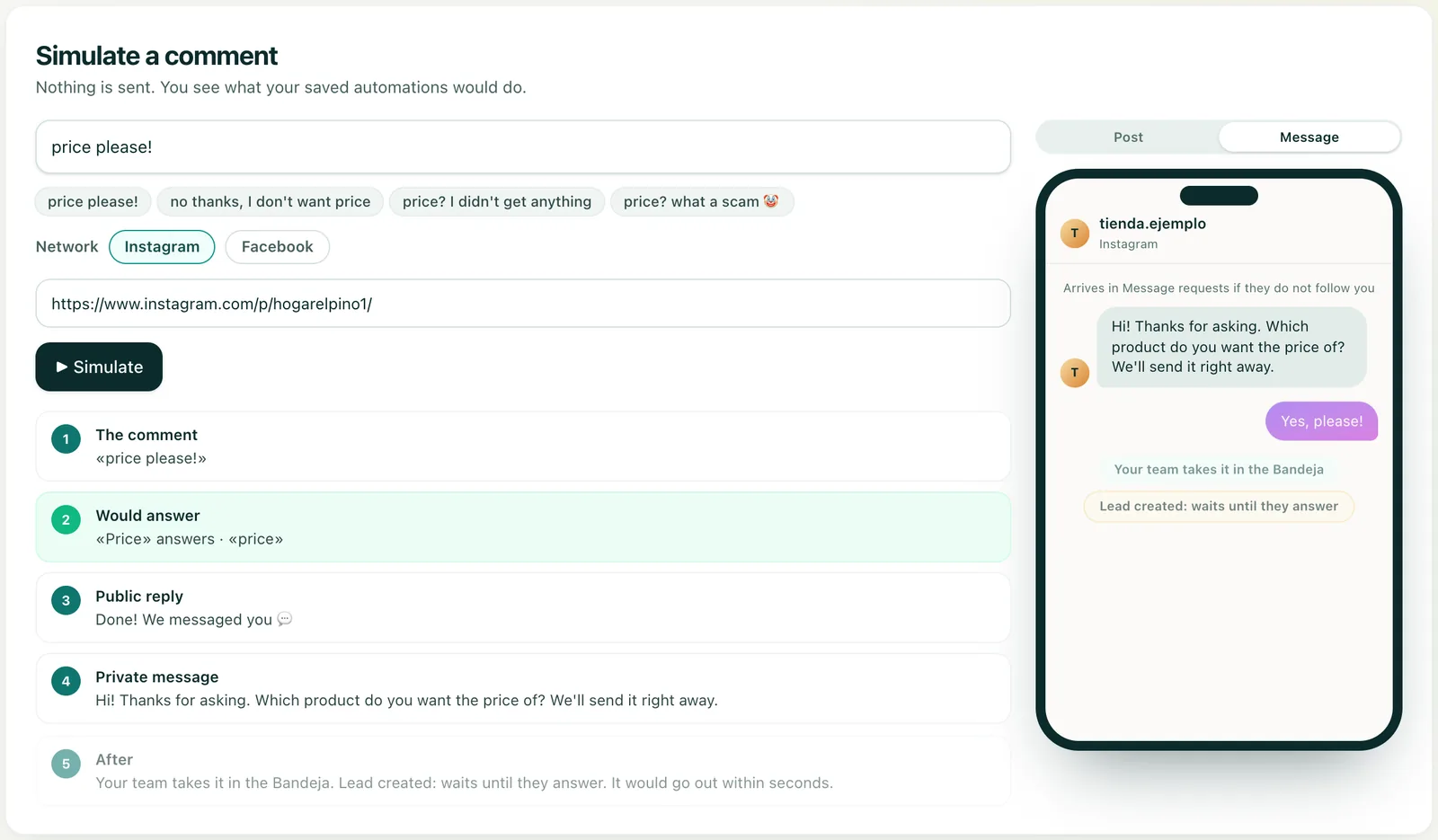
In Social comments, scroll down to Simulate a comment, type a comment the way your customers write them and tap Simulate. If the automation is for a single post, paste its link in Post link. You see whether it would answer, the public reply, the private message and what happens next. Nothing is sent.
What each network allows
Next to each step you'll see What Instagram allows or What Facebook allows:
- One private message per comment, up to 7 days after the comment.
- On Instagram, if the person doesn't follow you, it lands in "Message requests". On Facebook it arrives by Messenger even if they don't follow your Page.
- Files and buttons go out once the person answers.
Why a comment wasn't answered
- That automation already answered that person today (once per person per day).
- The comment is yours: your own comments are never answered.
- More than 7 days went by: Meta no longer allows the private message.
- Social comments is off: you turn it on from its own page, with the switch next to the name. While it's off it doesn't show in the menu: you'll find it in the Settings list.