In this guide: 4 parts
1. The list on the left
When you open Settings you see everything you can adjust on the left, grouped into five areas, each with its own color: Automatic service, Your team, Sales, Your business and Your account and plan.
- At the top of the list there's a search box: type what you're looking for, for example "hours", "bot" or "WhatsApp".
- The arrow shrinks the list down to a thin bar with the five colors; the three-line button opens it again.
- On your phone, the list is a selector at the top of the page.
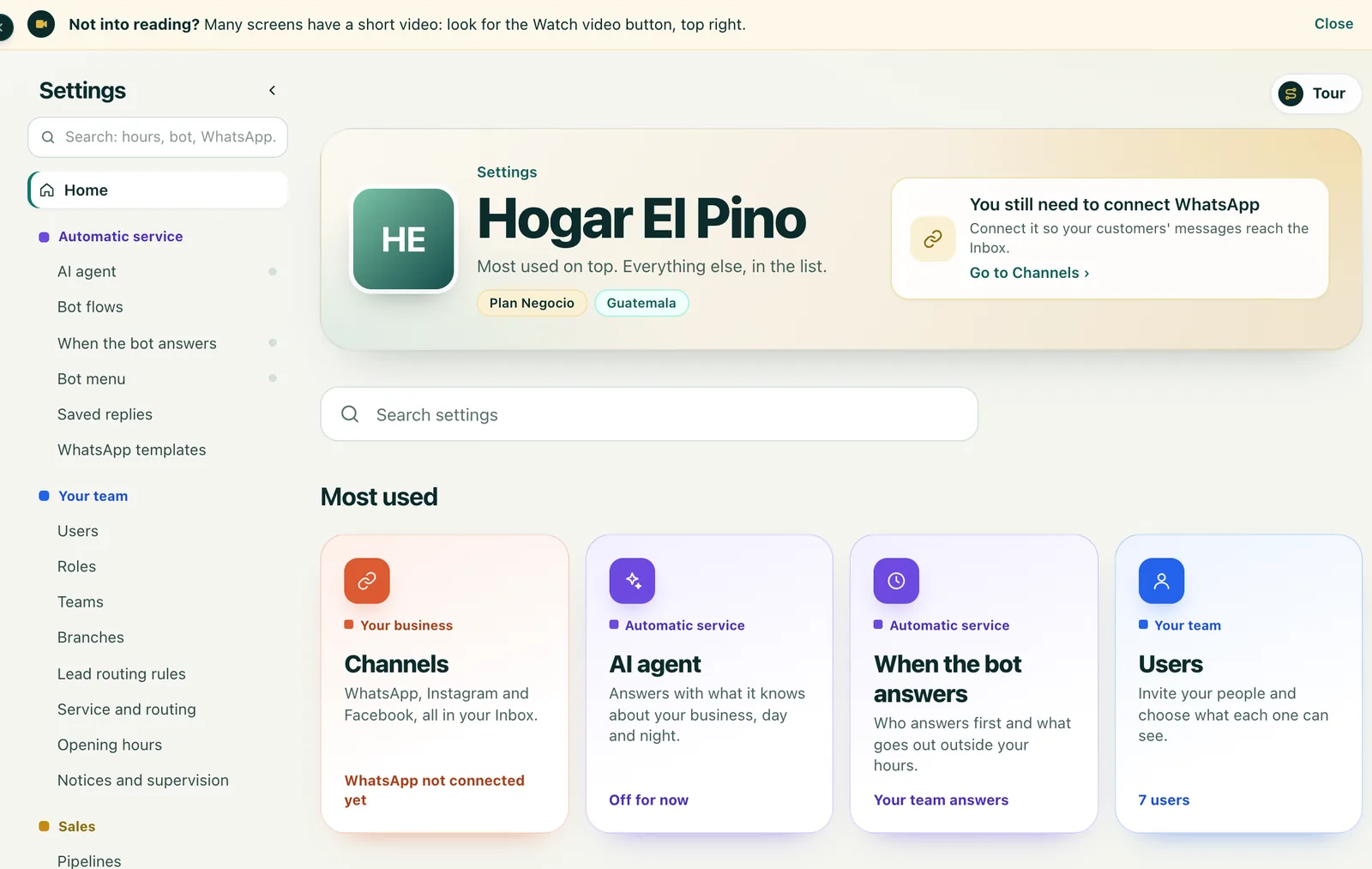
On Home, Most used takes you straight to Channels, AI agent, When the bot answers and Users, each showing how it's set up today.
2. Every page works the same
All pages have the same header, with Tour at the top right: a short walkthrough that explains that screen. When a page has several parts, they appear as numbered steps in a single row.
3. Looking for something from before
| Before | Now |
|---|---|
| Menu bot and who answers | When the bot answers (Who answers and Out of hours) and Bot menu (Menu and Assignment) |
| Turning Social comments on | In Social comments, next to its name |
| Integrations (WhatsApp, API keys) | Channels, in the menu on the left |
| Routing | Lead routing rules |
Channels and Products are no longer inside Settings: you open them from the menu on the left.
4. Simple or full menu
If you're an admin and your organization started with the new welcome, you see a simple menu: it groups what you use most, and everything else is under More.
To change it, open My account and, on the Menu card (next to Language), choose Simple or Full. It's just for you, in that browser.