In this guide: 5 parts
1. Choose where to start
The first time you sign in, Teczal asks you three short questions: Where to start, How you attend and Your path.
- In Where would you like to start? choose Let my networks answer by themselves (if you sell through your posts) or Sell with my team (if several people handle chats). If you just want to look around, tap I just want to see what it's like.
- In How you attend you say who answers (Me or My team and me) and which days and hours you're open. That way Teczal knows when response time counts.
2. Follow Your path
At the top of the menu you'll see the Your path pill: the steps you still have left, based on what you chose.
- If you chose your social media: Connect your Instagram or Facebook, Teach your assistant and Create your comment reply.
- If you chose your team: Bring your customers, Invite your team and See how they're shared.
You can leave a step for later with I'll do it later. Everything else you can do is further down, under Whenever you want.
Can't find something in the menu? If you see the simple menu, everything else is under More. You can switch to Full in My account, on the Menu card. More in Find everything in Settings.
3. Connect your first channel
- In the menu, open Channels (if you don't see it, it's under More).
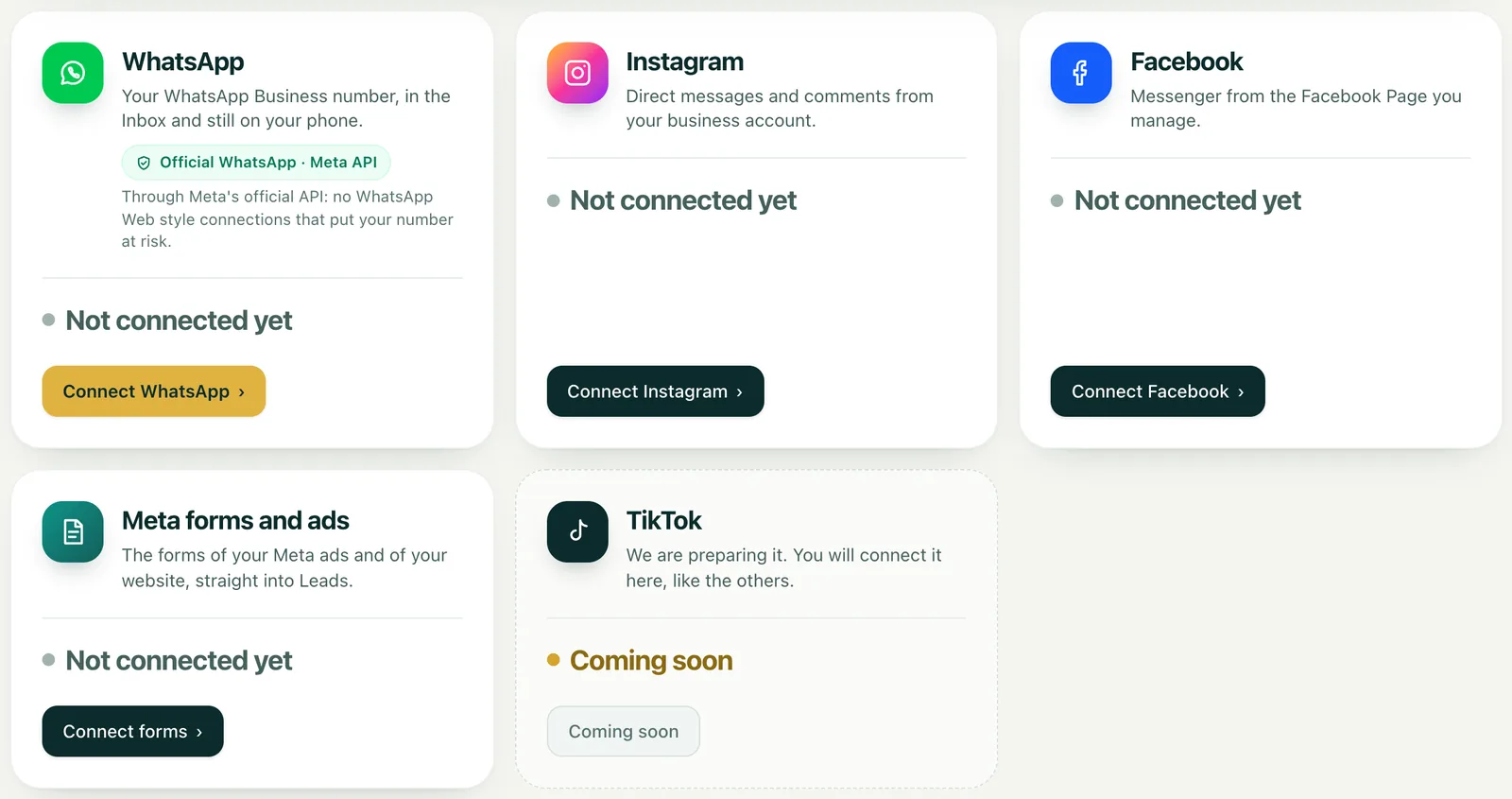
- Pick your network's card and tap Connect Instagram, Connect Facebook or Connect WhatsApp with Meta.
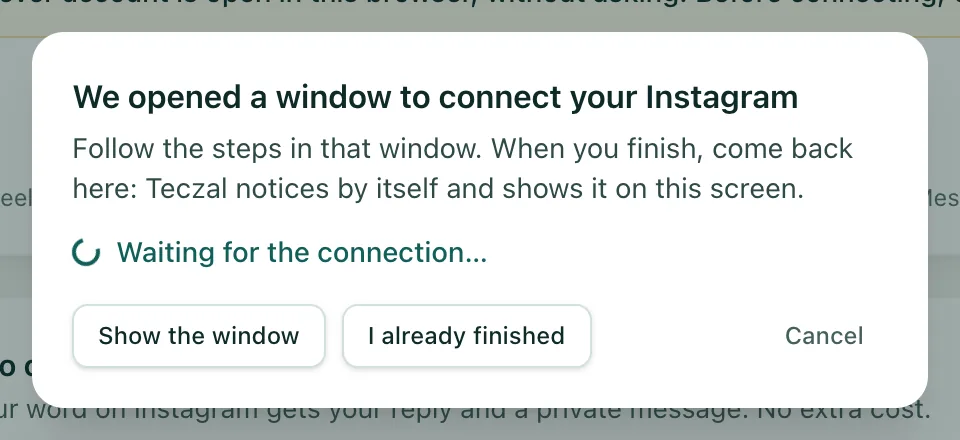
- A separate window opens so you can sign in with your account and grant permission. If you don't see it, tap Show the window.
- When you're done, go back to Teczal and tap I already finished.
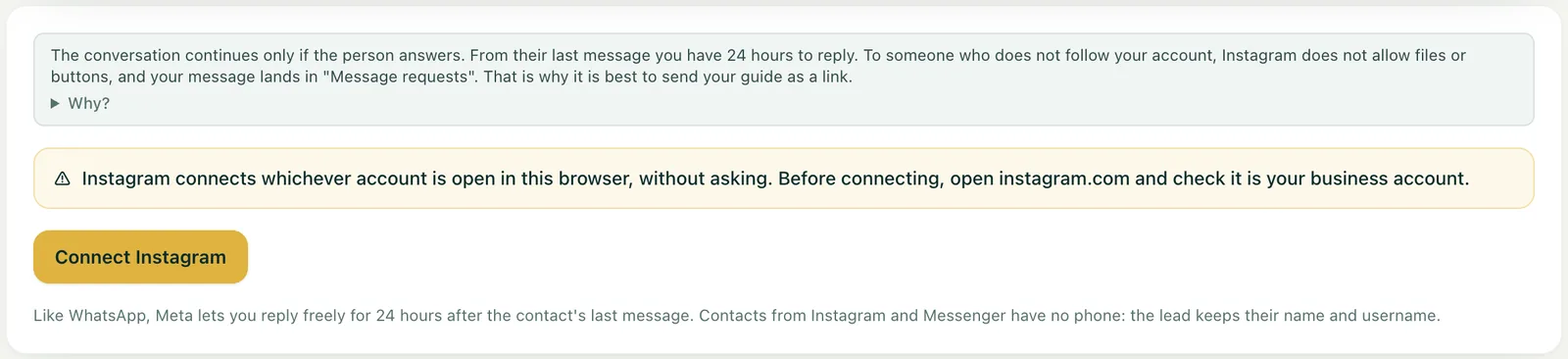
Careful with Instagram: it connects whichever account is signed in on that browser, without asking. Before connecting, check on instagram.com that it's your business account.
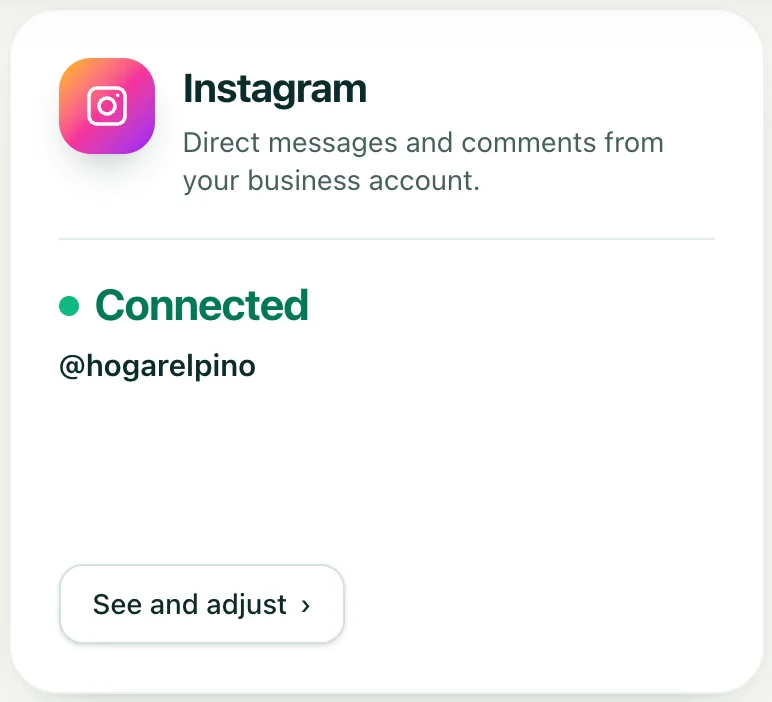
Once it's ready, the channel's card says Connected with your account name.
The free trial includes one channel: Instagram or Facebook. WhatsApp is connected when you choose your plan.
Every Facebook and Instagram screen, with its questions, in Connect your Instagram and your Facebook.
4. Bring in your team
- Open Settings and then Users.
- Tap Add person and fill in Full name, Email, Role and Team.
- Under Initial access, leave Email them the invitation checked (they get a button to create their password; the link is valid for 72 hours) or choose I'll share the temporary password and send it to them yourself, privately.
- Tap Add user.
More details in Invite your team.
For someone to receive leads they need a role that handles chats, to be on a team and to have signed in once. Each person counts toward your plan's user limit.
5. Answer your first chat
When someone writes to you, the message arrives in the Inbox. Continue with Answer your chats from the Inbox.