In this guide: 5 parts
1. Open Live
In the menu, open Live (if you don't see it, it's under More). Everyone sees only what's theirs: a supervisor sees their teams. Agents don't have Live.
2. The Numbers view
It opens in Numbers by default (and remembers the last view you used):
- Waiting for a first contact: the leads nobody has attended yet, split into with the bot, without a clock, on time, about to expire and overdue.
- Waiting the longest: with the Open conversation button to attend to them right away.
- Overdue: how many ran out of time, and how many in the last hour.
- Free to take leads: people who are available, receiving leads and with nobody waiting for their first contact.

Below come By team (the one doing worst on top), About to expire, Your people now, Latest and Came in per hour.
Attended today are the leads that got their first contact today. Response is the average minutes to that first contact.
3. The City view
Each building is a team, with its people working inside; at the café, whoever is on a break. Each figure in the line on the sidewalk is a lead waiting for its first contact. Use Zoom in, Zoom out and See the whole city.
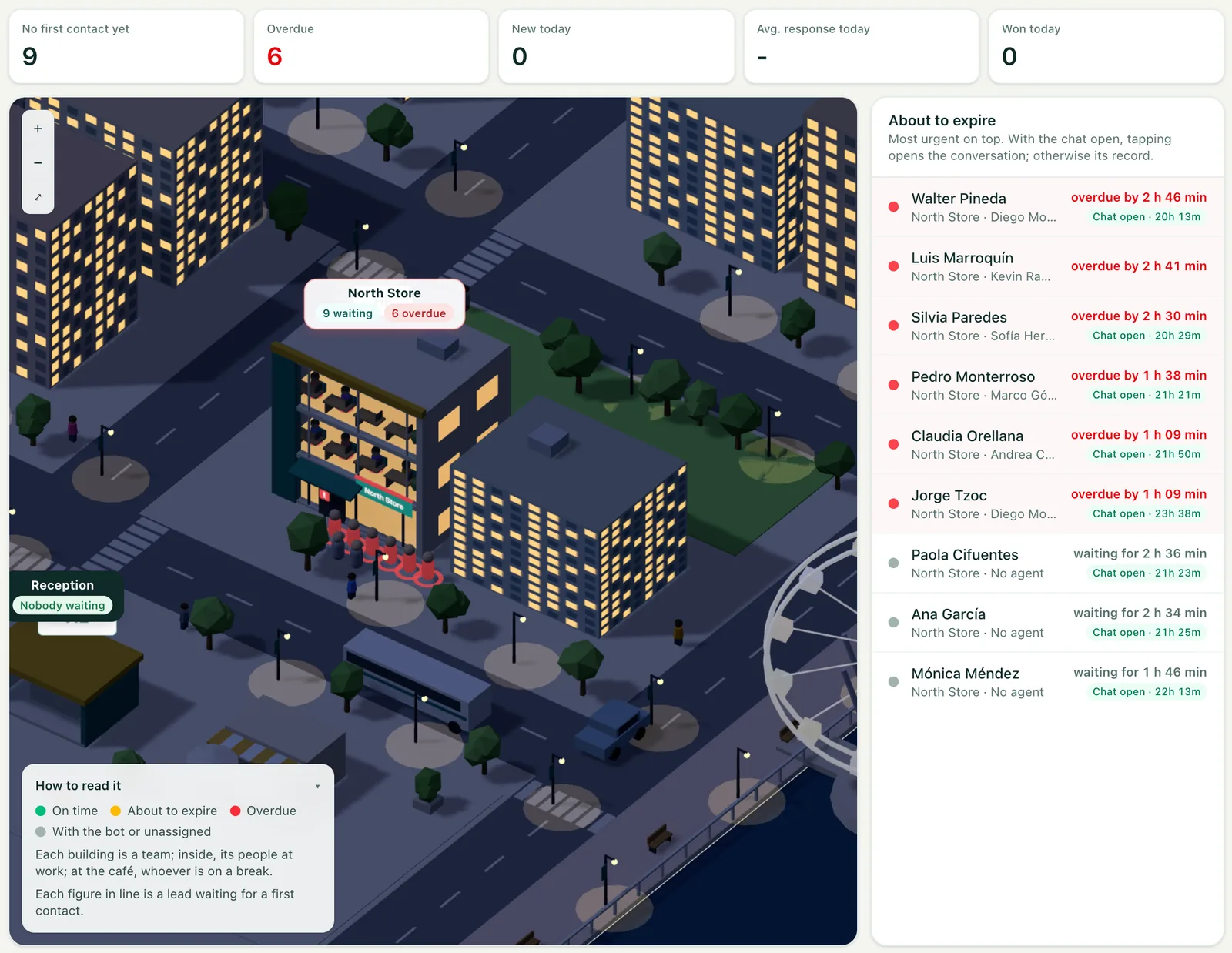
If the computer can't show the city in 3D, Teczal shows you the numbers.
4. Put it on the office TV
Tap TV mode to see it full screen. You leave with Exit TV mode or the Esc key.
- Sound turns on or off right there.
- Hide names shows only initials, for recording or sharing your screen.
Live doesn't show pop-ups on top: it can stay on all day without anyone touching it.
5. How often it refreshes
It refreshes on its own every minute. If the tab goes to the background it stops refreshing, and it catches up as soon as you come back.
What doesn't count as waiting: a lead that commented on your post and hasn't answered the private message yet.