In this guide: 6 parts
What you'll get: when a lead comes in, you know right then, even if you're on another screen or Teczal is closed. And when a follow-up is due, Teczal puts it right in front of you.
1. The pop-up: the notice that shows up by itself
When a lead is assigned to you, a pop-up appears at the top right with the type of notice, the lead's name and why it reached you. Tap Open to go to their profile or Close to put it away. It goes away by itself after a few seconds; if you hover the mouse over it, it stays.
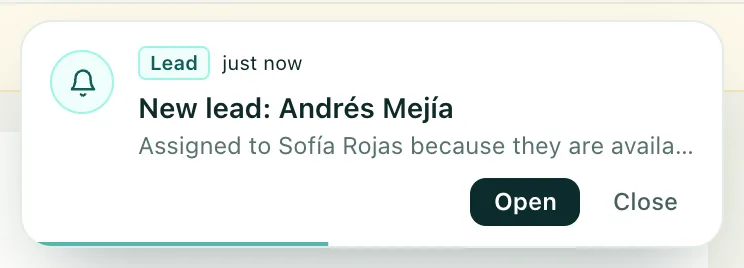
If more than 3 notices arrive at once, a single pop-up shows how many there are and opens the bell.
2. The bell: everything stays there
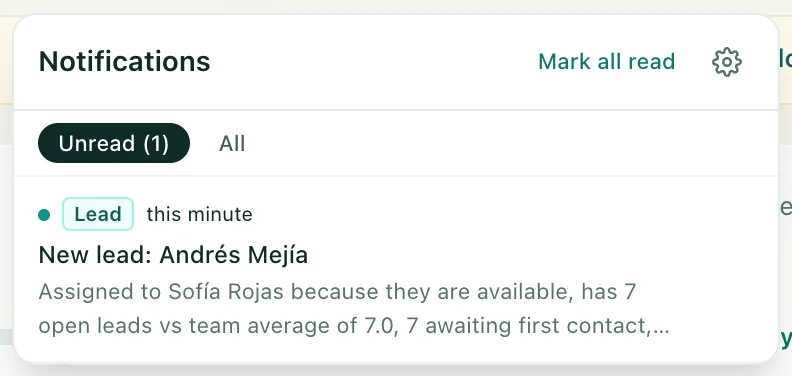
The bell at the top always has all your notices, even if you closed the pop-up. The red number is what you haven't read. Tap it to see them, under Unread or All, and use Mark all read once you've gone through them.
3. The follow-ups window
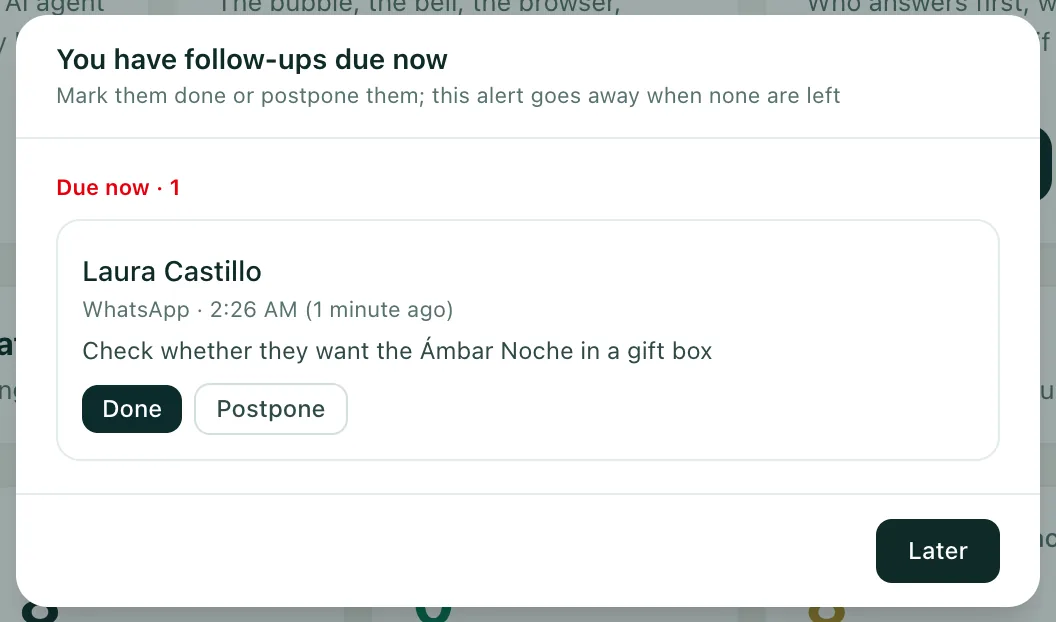
When a follow-up you scheduled is due, Teczal opens the You have follow-ups due now window, with the lead and your note. Tap Done when you've handled it or Postpone to move it. The notice goes away when there are none left. It also greets you with your pending items when you sign in to Teczal.
How do you schedule a follow-up? It's in Work a lead from its profile.
4. Outside Teczal: browser and Telegram
The pop-up and the bell only show while Teczal is open. To find out while Teczal is closed, go to My notices: tap the bell and then the gear, or open My account and choose My notices.
- Browser: in This device, tap Turn on in this device. It works on your computer and on Android without installing anything. On iPhone, first add Teczal to your home screen and turn it on from there.
- Telegram: in Telegram, tap Connect Telegram, scan the code with your phone's camera and tap Start in the bot's chat. Notices reach your phone.
Do both on every computer or phone you work from. To check it, tap Send me a test notice.
5. E-mail, as a backup
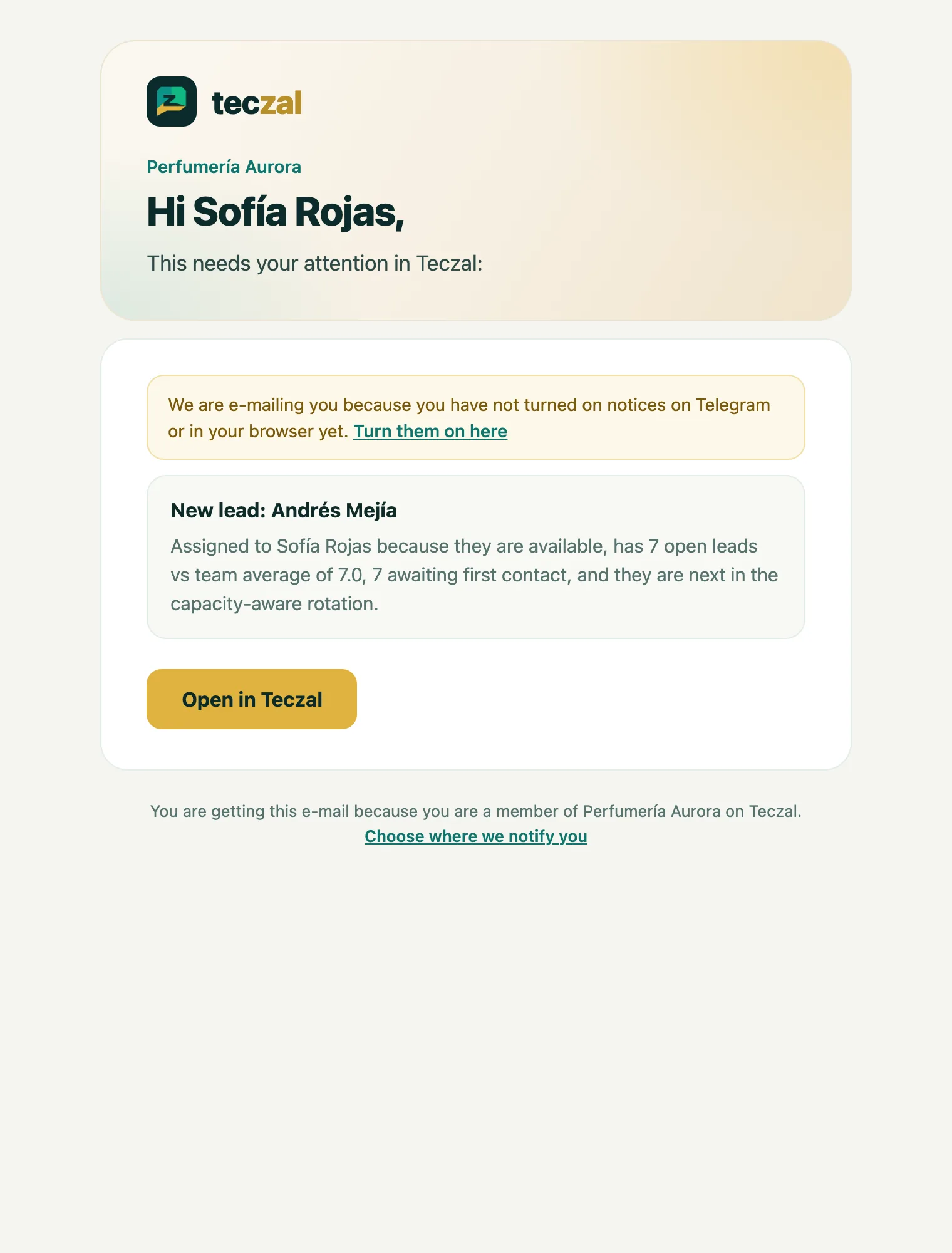
If you haven't turned on the browser or Telegram yet, Teczal sends you the notice by e-mail so you don't miss it. The e-mail tells you why it reached you and has the Open in Teczal button.
6. Choose what reaches you where
In My notices › What reaches you you mark, notice by notice, where you want to find out: Pop-up, Browser or E-mail, and Telegram once you connect it. The bell always has everything.
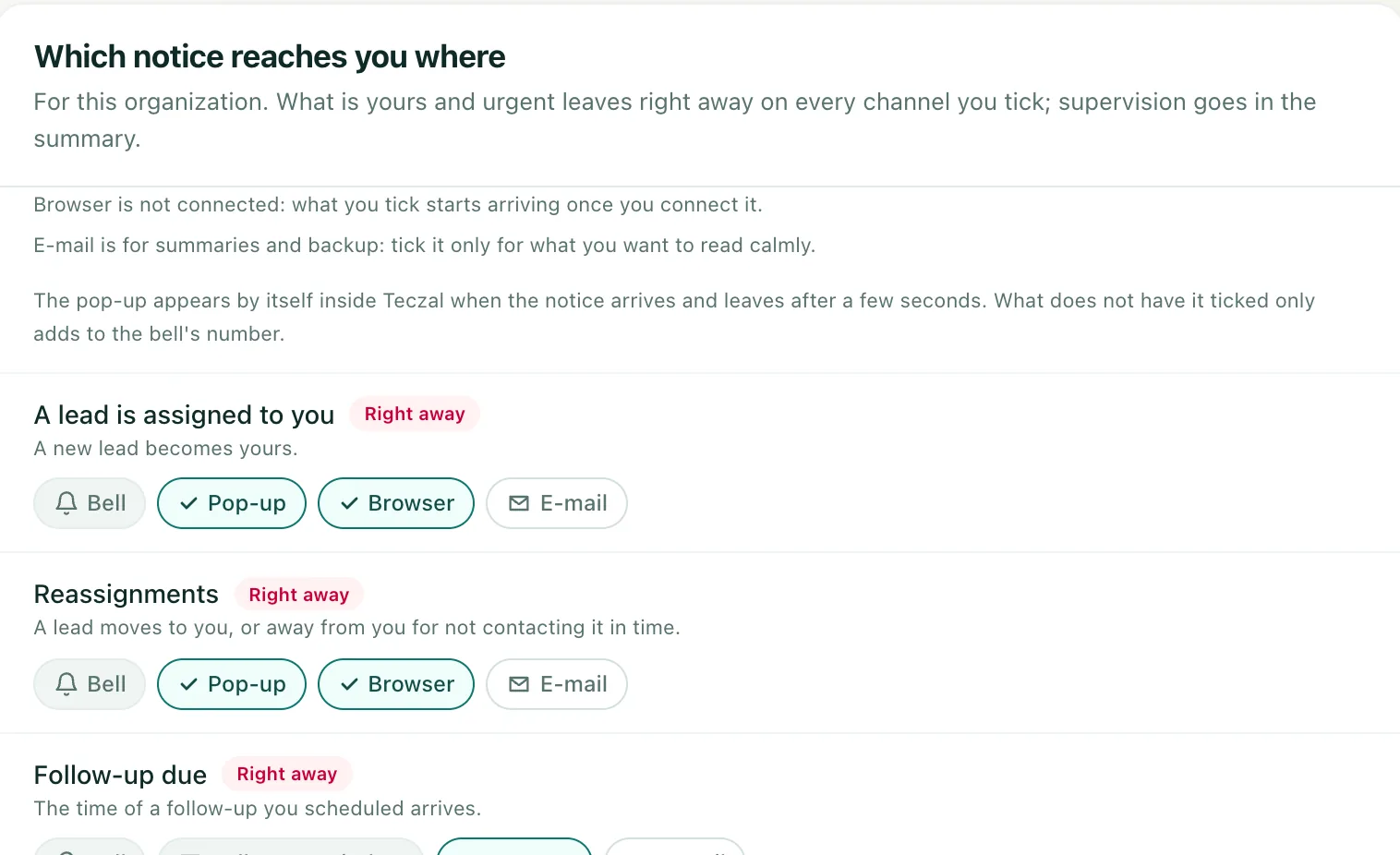
- What's yours and urgent (a new lead, a follow-up due now, an appointment) goes out Right away.
- Supervision notices (for example, a lead that went past its first-contact time) arrive In the summary, so your phone doesn't fill up.
- E-mail works best for summaries: check it only for what you want to read calmly.
If you manage the account, in Settings › Notices and supervision you decide which notices the organization sends and to whom.
What Teczal doesn't do: it doesn't notify you by WhatsApp or SMS, and the pop-up and the bell only show while Teczal is open. To find out while Teczal is closed, turn on the browser or Telegram on every device you work from.