In this guide: 7 parts
1. Find the chat that's next
In the menu, open Inbox. The filters are at the top: All, Mine, Unassigned and Awaiting reply, plus Open or Closed.
To start your day, Mine and Awaiting reply tell you what's left to do.

2. Answer
Write in Type a reply... and tap Send. You can also send an image, an audio or a PDF of up to 5 MB.
3. Use your saved replies
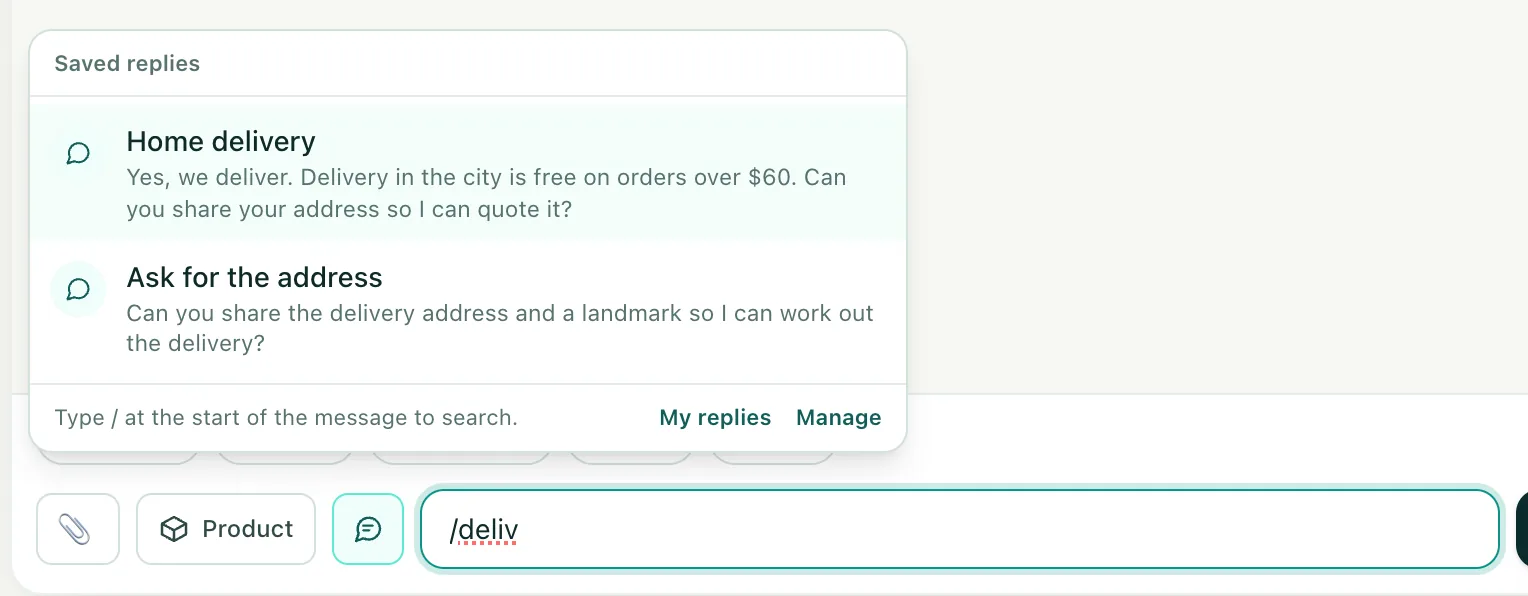
For what you answer every day, tap Replies or type / at the start of the message and search for the one you need.
- The business ones, which the whole team sees, are created in Settings, Saved replies.
- Your own, in My replies, from your account.
4. Hand a chat to someone else
At the top of the chat, pick the person from the list and tap Assign.

From the lead's page (View lead) it's Change owner: you choose the New owner, write the Reason and tap Confirm change. The change stays in the lead's history.
If the lead is closed you can't assign it from the Inbox: open it from its page and change its stage.
Admins and managers can assign.
5. If the 24-hour window has passed
On WhatsApp, Meta only lets you reply freely for 24 hours after the customer's last message. After that you'll see 24-hour window closed.
To pick the conversation back up you have two options:
- Wait for the customer to write again.
- Use Resume with a WhatsApp template: choose an approved template and tap Send template.
Meta charges your account for templates, so only the roles that can spend (admin and manager) send them. If the contact has never written to you, you also need a template.
6. Close what's done
When you're done, tap Close conversation. If the message doesn't need an answer (a "thank you", a sticker), tap No reply needed.
7. Correct your AI agent
If your agent answered something wrong, hover over its message and tap Correct. In What should it have said? write the right answer and save it as a frequent question or as a rule.
Nothing is sent to the customer: the agent uses it from the next message. Correcting is done by an admin.