In this guide: 5 parts
1. Open Bot flows
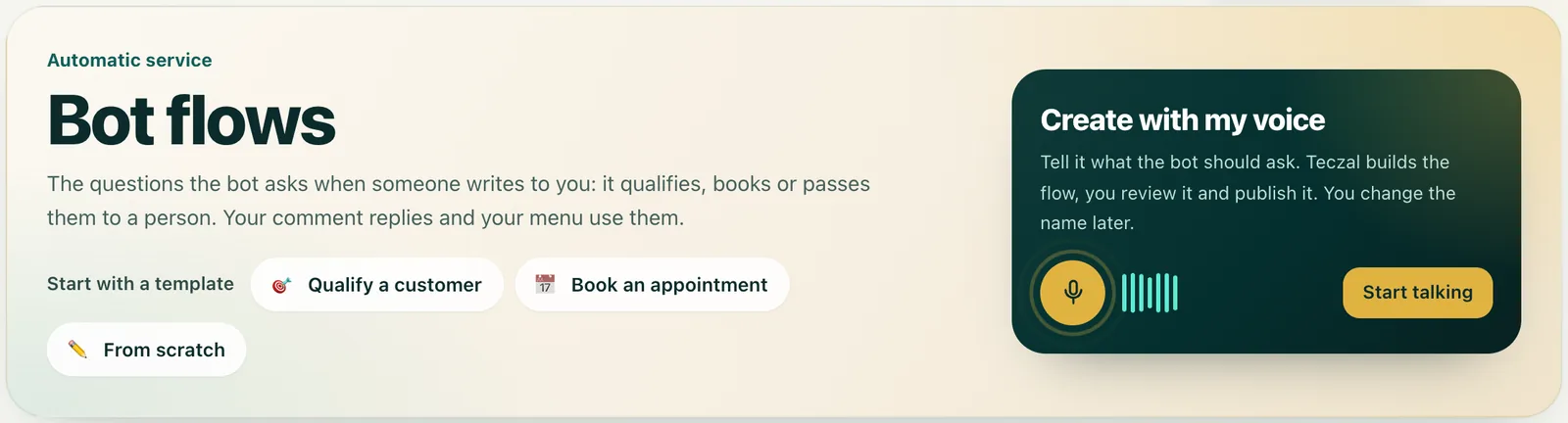
Go to Settings and, in the list on the left, tap Bot flows (under Automatic service).
You have three ways to start:
- Start with a template: Qualify a customer or Book an appointment. It comes with the questions ready so you only adjust them.
- From scratch: an empty flow you add the steps to.
- Create with my voice: you tell it what the bot should ask and Teczal builds the flow; you review it and publish it. See Create your bot flow with your voice.
2. Review the steps
The flow is built in three tabs: Questions, Conditions and Test and publish.
In Questions, the Steps are on the left: each one is something the bot says or asks. In the middle you edit the step you tapped, and on the right, in What your customer sees, you see the conversation as it would reach them.
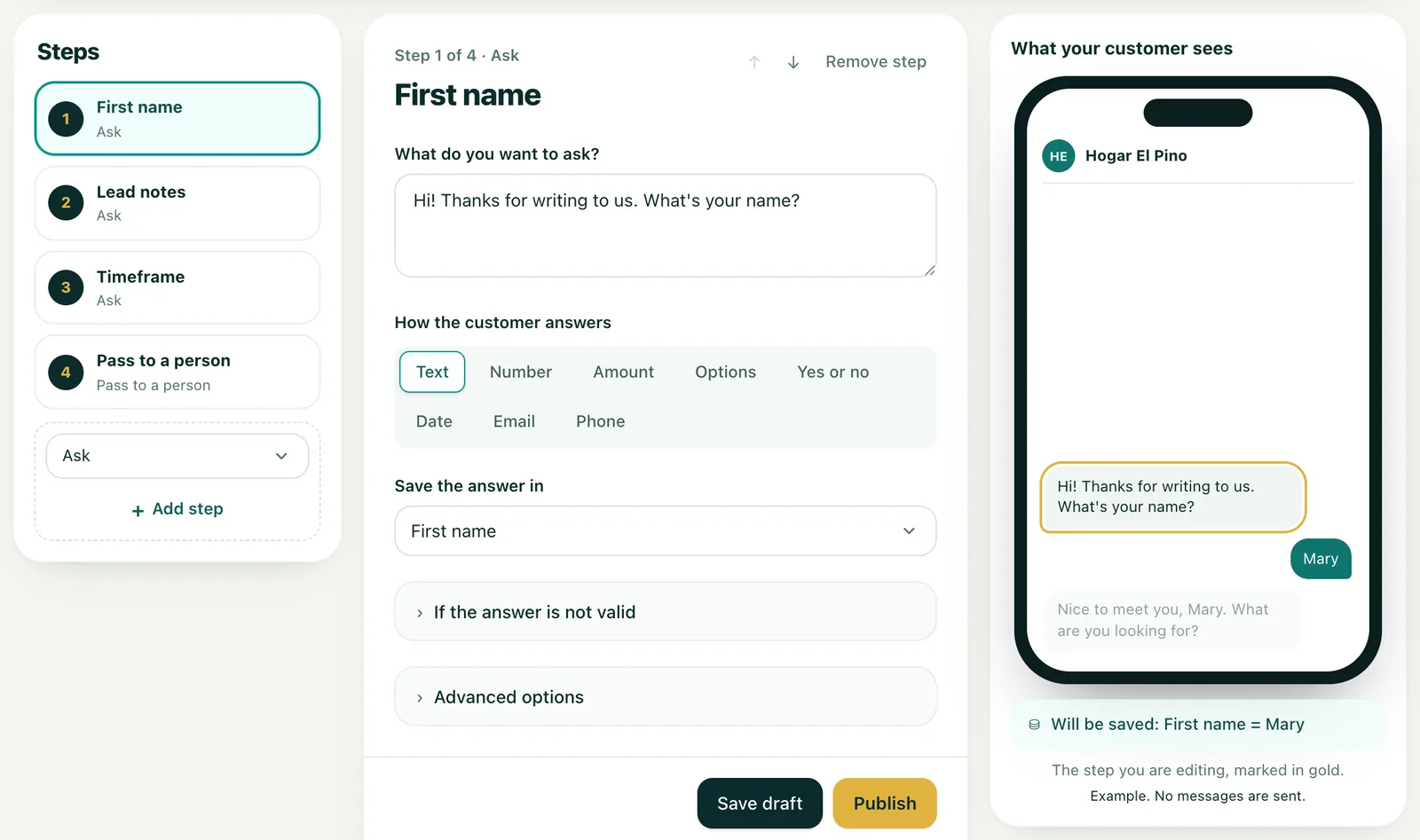
To add a step, choose the type (Say, Ask, Branch, Store, Pass to a person or End) and tap + Add step. Use the arrows to move it up or down, and Remove step to delete it.
3. Ask a question with options
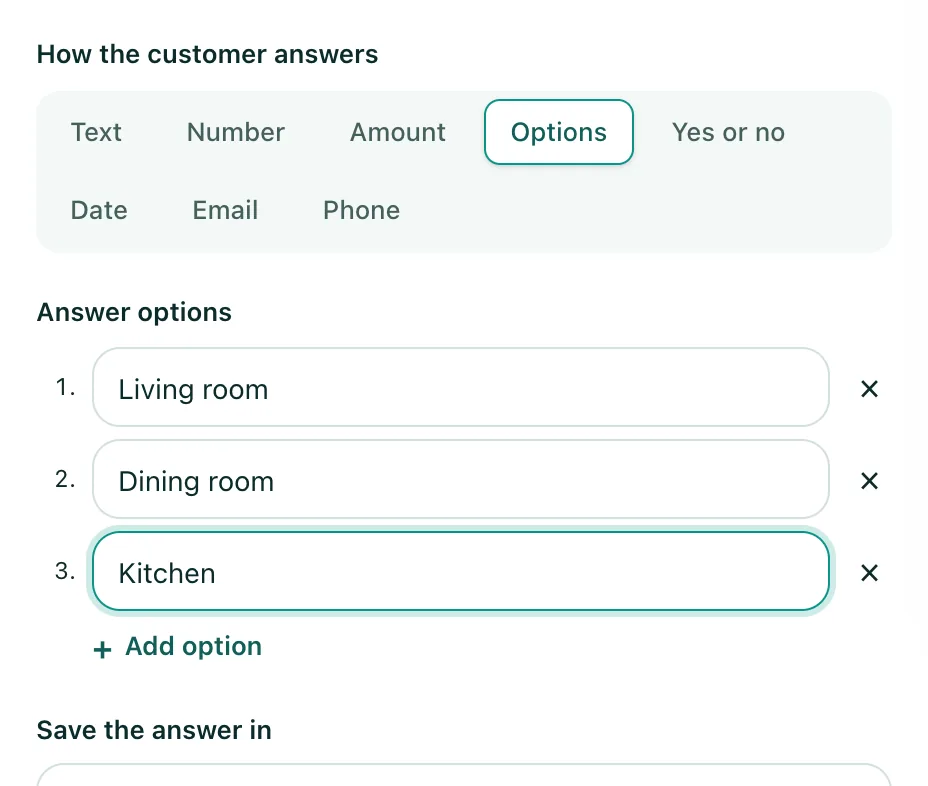
Tap the question and write the text in What do you want to ask?. In How the customer answers, choose the type of answer: Text, Number, Amount, Options, Yes or no, Date, Email or Phone.
With Options, write each answer in Answer options and tap Add option to add another. Then, in Save the answer in, choose which field of the lead it goes into (name, municipality, amount, lead notes and others).
Tap Save draft. While it's a draft, your customers don't see anything.
Conditions: if the flow should take a different path depending on the answer (for example, small and large budgets), use a Branch step and set where it goes next in the Conditions tab.
4. Test it as if you were your customer
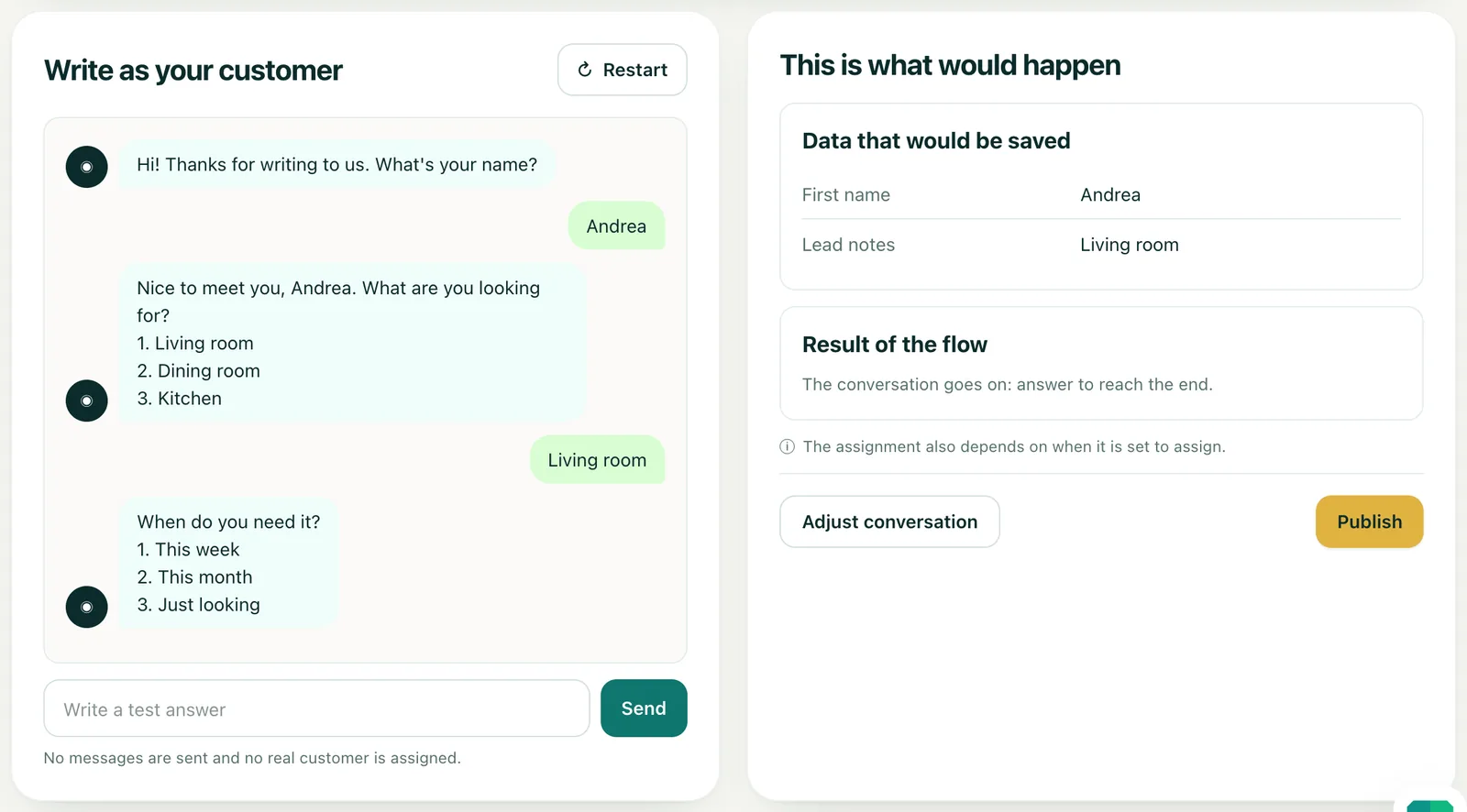
Open Test and publish. In Write as your customer, answer the questions and look on the right at This is what would happen: the Data that would be saved and the Result of the flow. No messages are sent and no real customers are assigned.
If you want to watch it run by itself, tap See it in action.
5. Publish it and connect it
Tap Publish. From that moment it can be started by:
- The bot menu, in Settings, Bot menu (the option that starts a flow).
- Your Social comments automations, when the customer answers the private message.
If you change something later, the changes reach your customers when you publish again.