In this guide: 5 parts
1. Open AI agent
Go to Settings and, in the list on the left, tap AI agent (it's under Automatic service and also under Most used). If you chose to have your social channels answer on their own when you started, you also have it in the menu, as a shortcut. The agent answers your chats with what it knows about your business, day and night, and hands you the conversation when needed. It never makes up prices, stock or opening hours.
At the top right you see Your AI conversations and what's left before you can turn it on: Tell it about your business, Try it once and Choose where it answers.
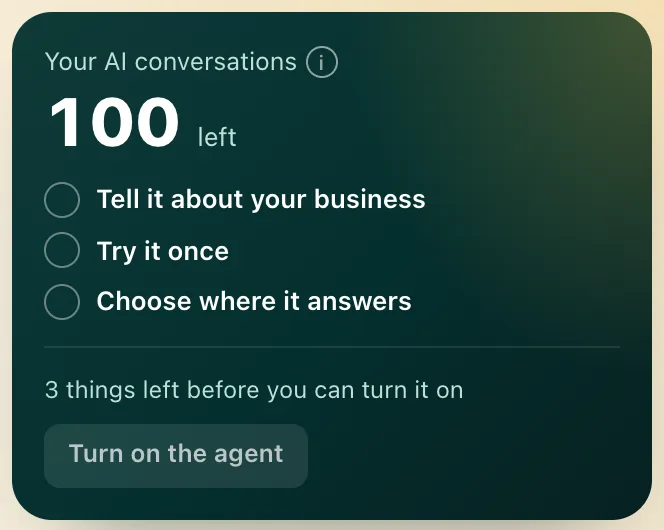
The setup has four steps: Your business, When it hands you the conversation, What it can do and Test and turn on.
2. Teach it your business
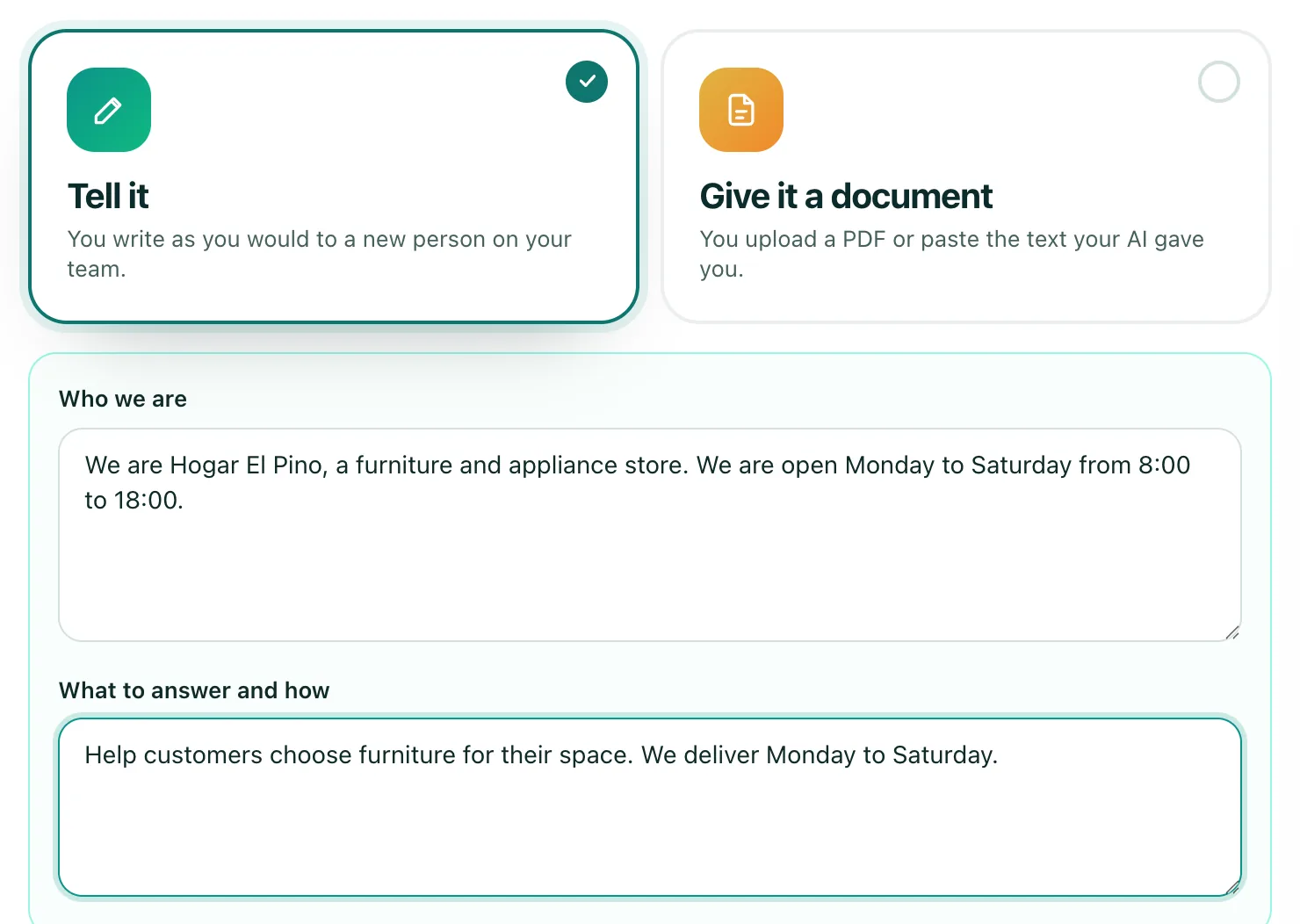
In What it knows about your business you have two paths. You can use both.
Tell it: you write as you would to a new person on your team. In Who we are, put what you sell, where you are and your opening hours; in What to answer and how, how you want it to serve your customers.
Give it a document: you upload a PDF (up to 5 pages and 4 MB, with text, not photos of pages) or paste the text. If you don't have one, Teczal gives you a prompt to ask the AI that already knows your company (ChatGPT, Claude or Gemini) for it.
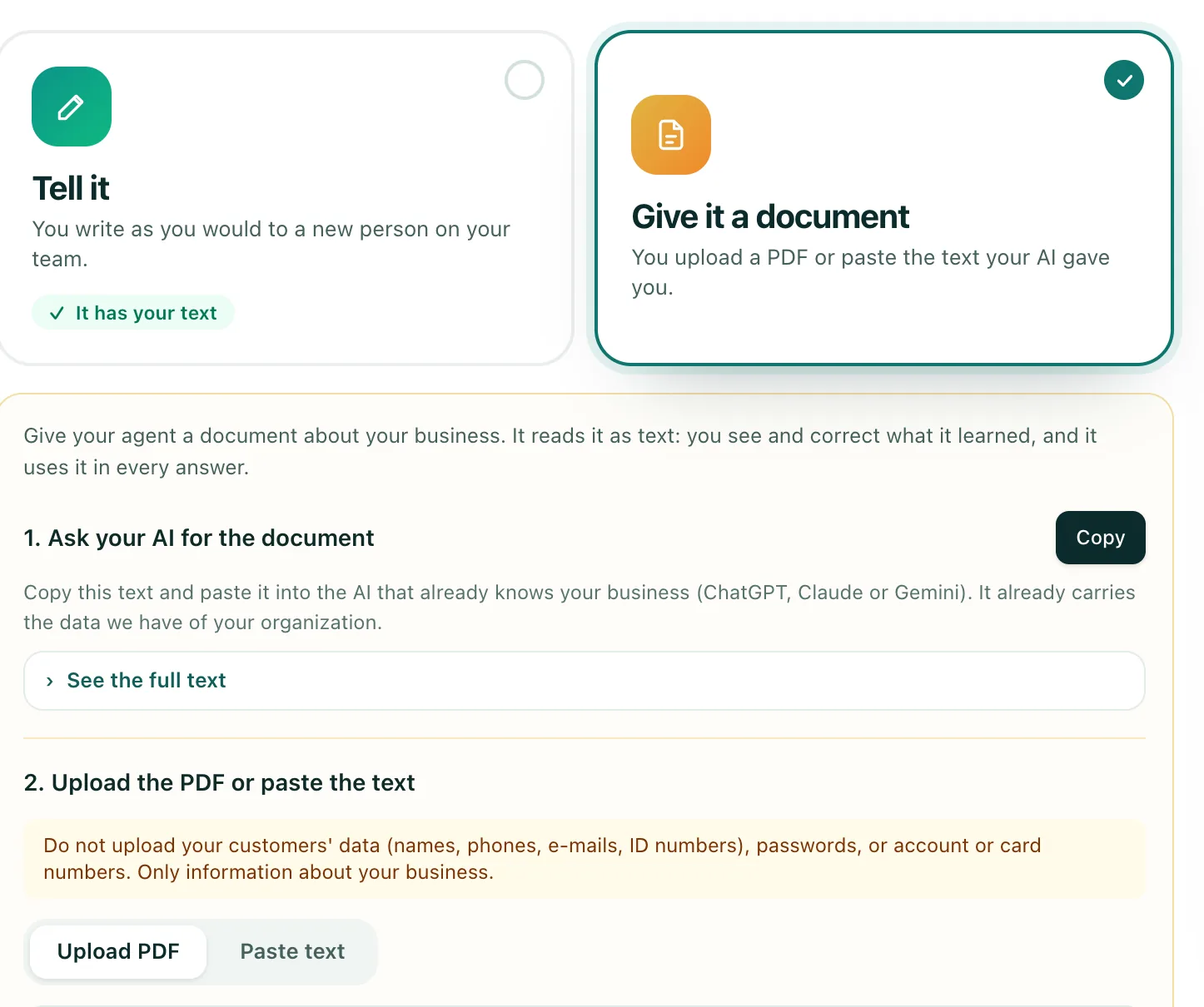
Don't upload your customers' data (names, phone numbers, e-mails, ID documents), passwords or account or card numbers. Only information about your company.
Below, in Questions you get often, write what you're asked most, with the answer you would give. Tap Save.
3. Test it
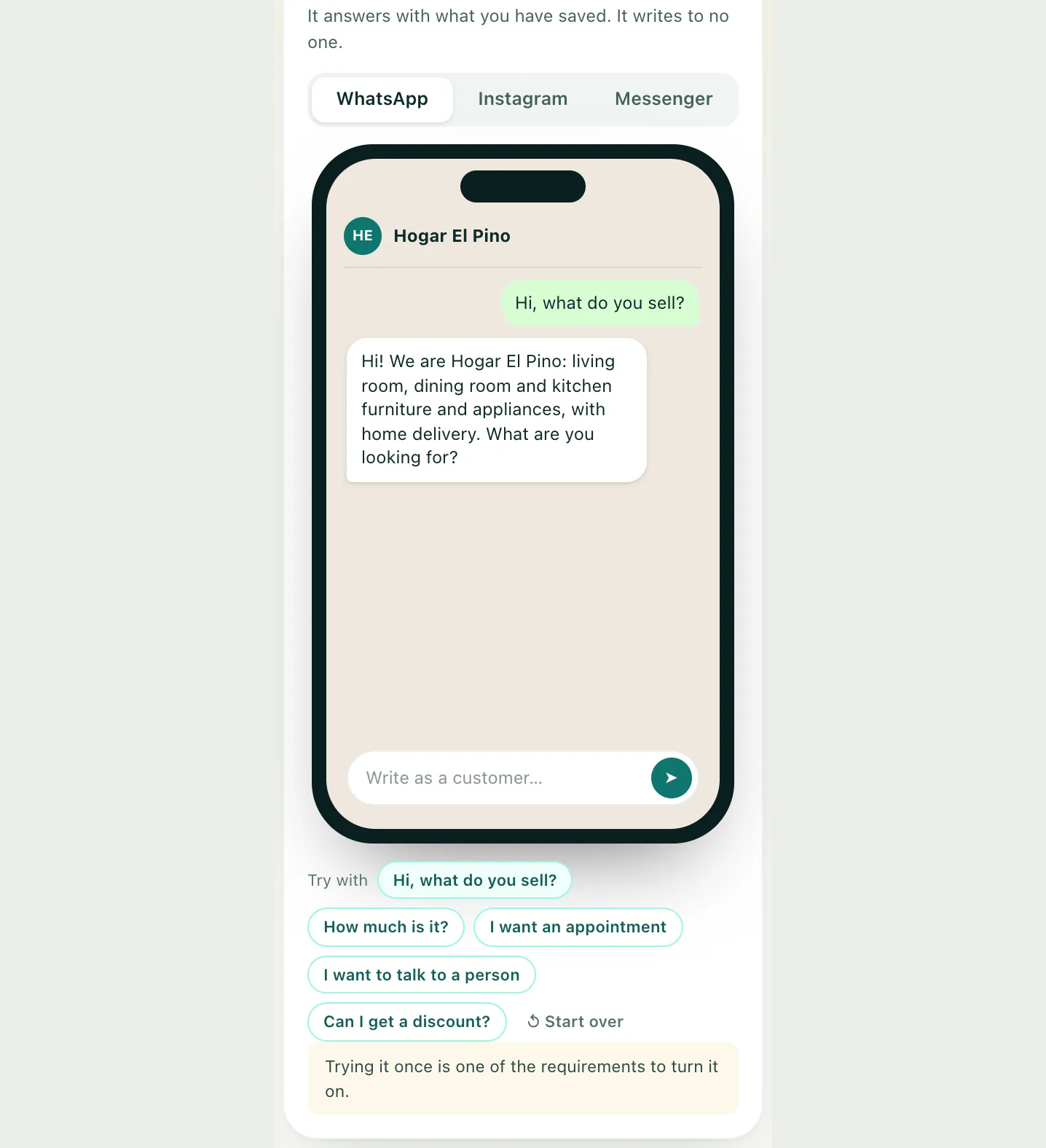
In Try it while you build it, write to it as if you were your customer, or tap one of the suggestions (Hi, what do you sell?, How much is it?). It answers with what you have saved and doesn't write to anyone. Testing it once is one of the requirements to turn it on.
4. Choose where it answers and turn it on
Open Test and turn on. In Where it answers, check the channels, tap Save channels and then Turn on the agent.
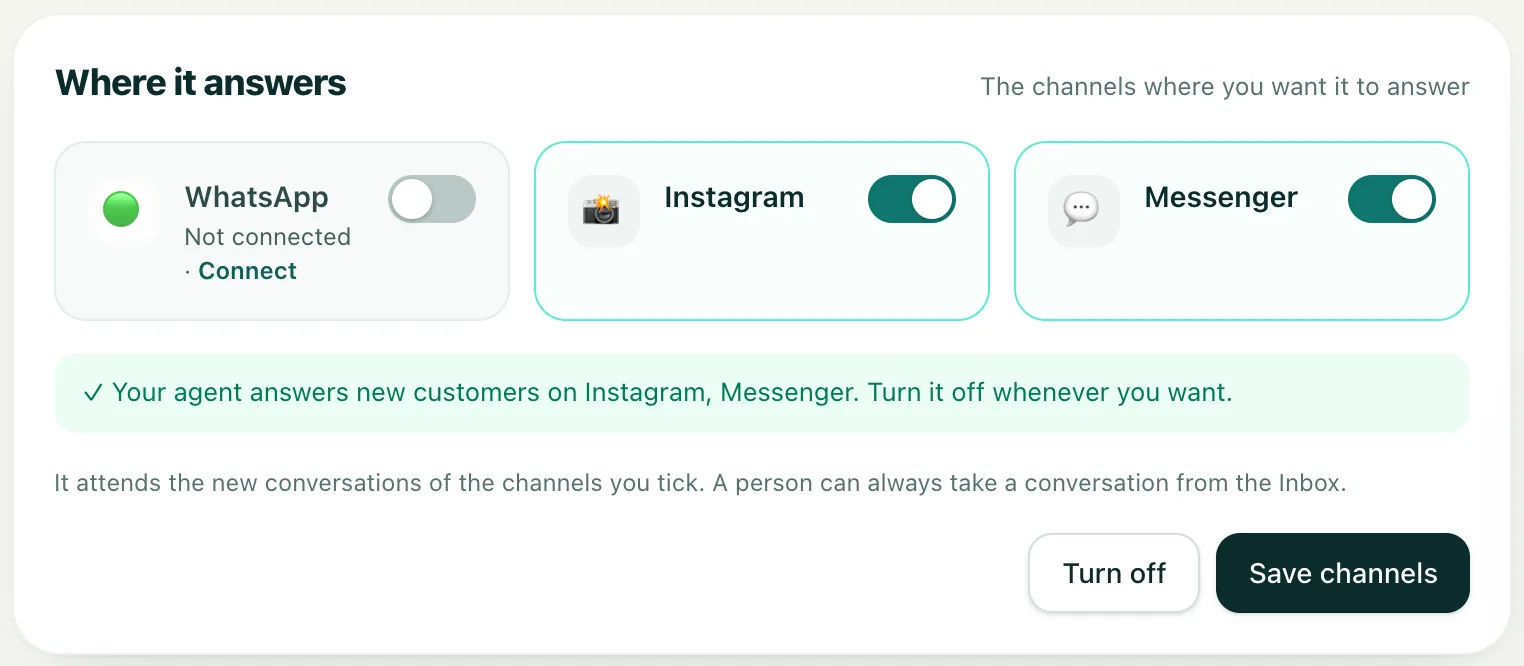
It handles new conversations on those channels. A person can always take over a conversation from the Inbox, and you can switch it off whenever you want with Turn off.
5. Correct it from the Inbox
If your agent answered something wrong, open the conversation in the Inbox, hover the mouse over its message and tap Correct.
In What it should have said, write the right answer and choose how to save it:
- Save it as a frequent question: for one specific question.
- Save it as a rule: for a whole topic. In When they ask about, write the topic.
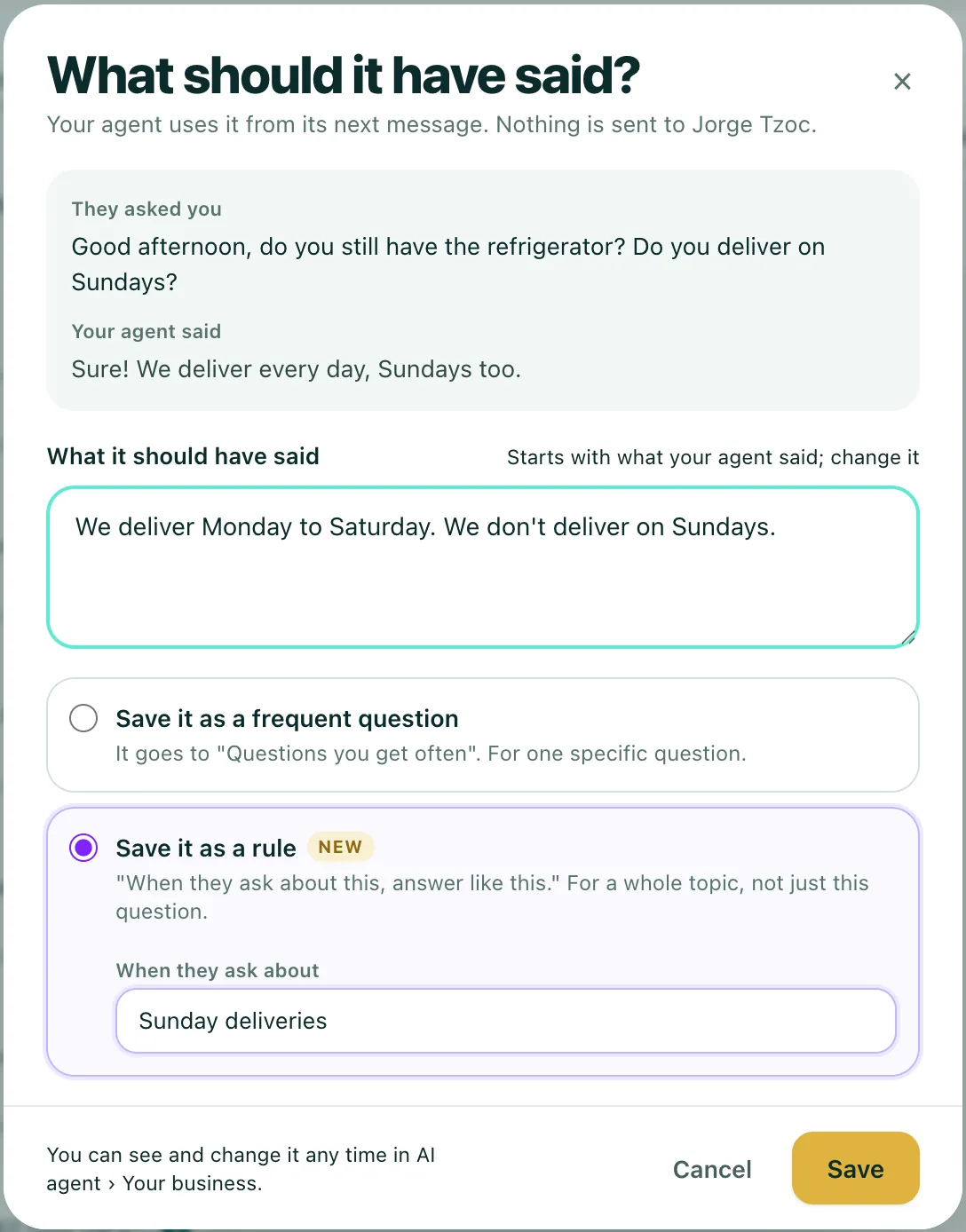
Tap Save. Nothing is sent to the customer and your agent uses it from the next message on. You can see and change the rules in AI agent, Your business, under Rules you taught it.