In Leads you have two ways to bring in your customers: Import, for many at once, or New lead, for just one.
1. Import from a file
Tap Import. The screen has three steps:
- Download the template: a CSV with the exact columns and two example rows, using your organization's products.
- Fill it in with your customers: one row per customer. Each one needs at least a phone (
phone) or an email (email). Tap How the columns are read if you're unsure about any of them. - Upload it: choose the file and tap Import. Up to 1,000 rows per file.
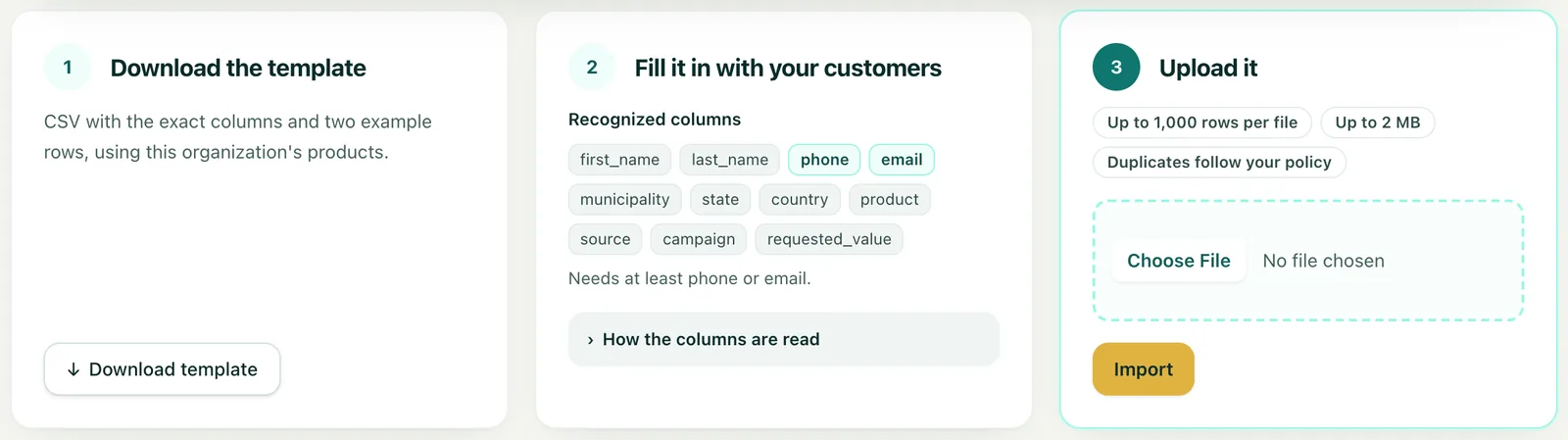
When it's done you'll see Import done with how many were imported. Duplicates are handled according to your policy, and each new lead is assigned like leads from any channel.
Is your list in Excel? Save it as CSV (in Excel: File, Save As, CSV) with the same column names as the template.
2. Create a lead by hand
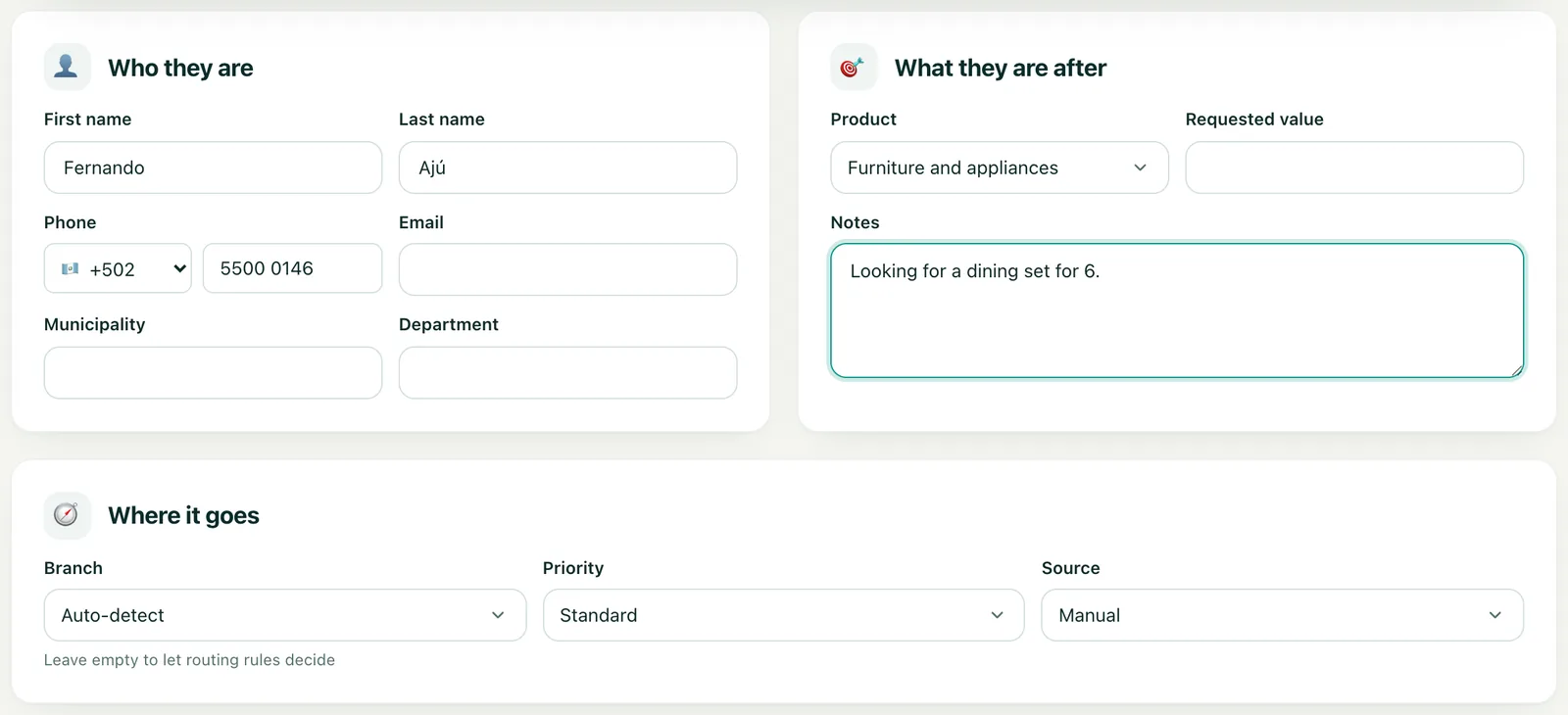
Tap New lead and fill in what you know:
- Who they are: First name, Last name, Phone, Email, Municipality / city and State / department.
- What they are after: Product, Requested value and Notes.
- Where it goes: Branch, Priority and Source (for example Inbound call, Referral or Walk-in).
If you leave the branch on Auto-detect, your routing rules decide. Tap Create lead and its record opens.
Continue with Work a lead from its record.
Was this guide helpful?